Clearing Selections
Modified on Wed, 14 Aug, 2024 at 2:50 PM
TABLE OF CONTENTS
Introduction
This article will demonstrate how you can clear your selections once you are finished using them.
Step-by-Step Guide
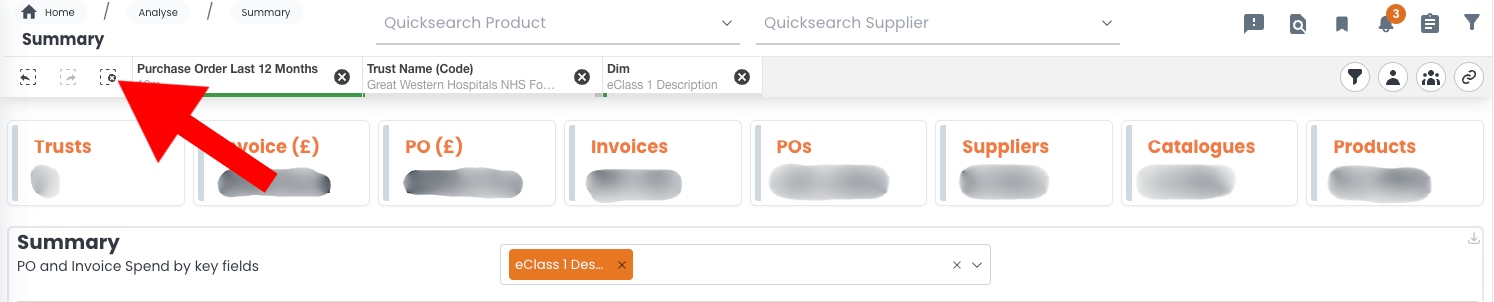
1. Identify the filters you currently have selected by looking along the top of the screen.

2. Clear any individual filters you no longer need by selecting the 'cross' for the respective selection.
3. Alternatively, you can clear all filters from your current selection by using the 'Clear all selections' button, shown in the below image.
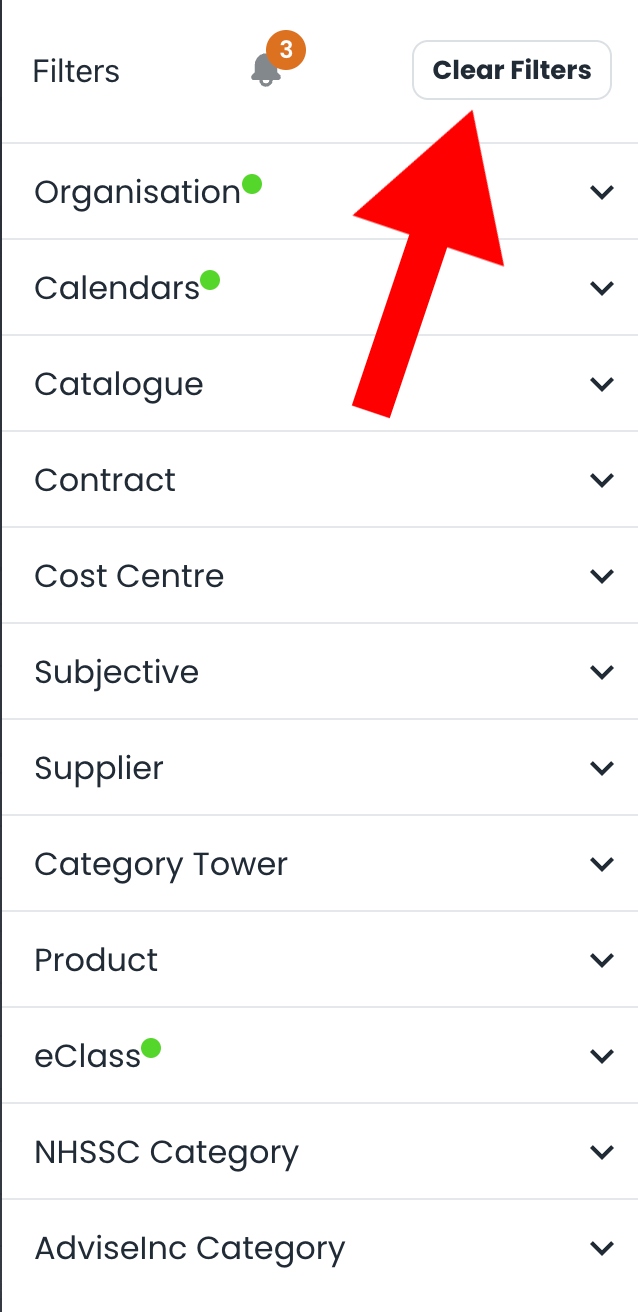
4. You can also clear your selections via the fliters icon in the top right hand corner. Select the icon as shown, and then select 'Clear Filters'. This will remove all unlocked selections.

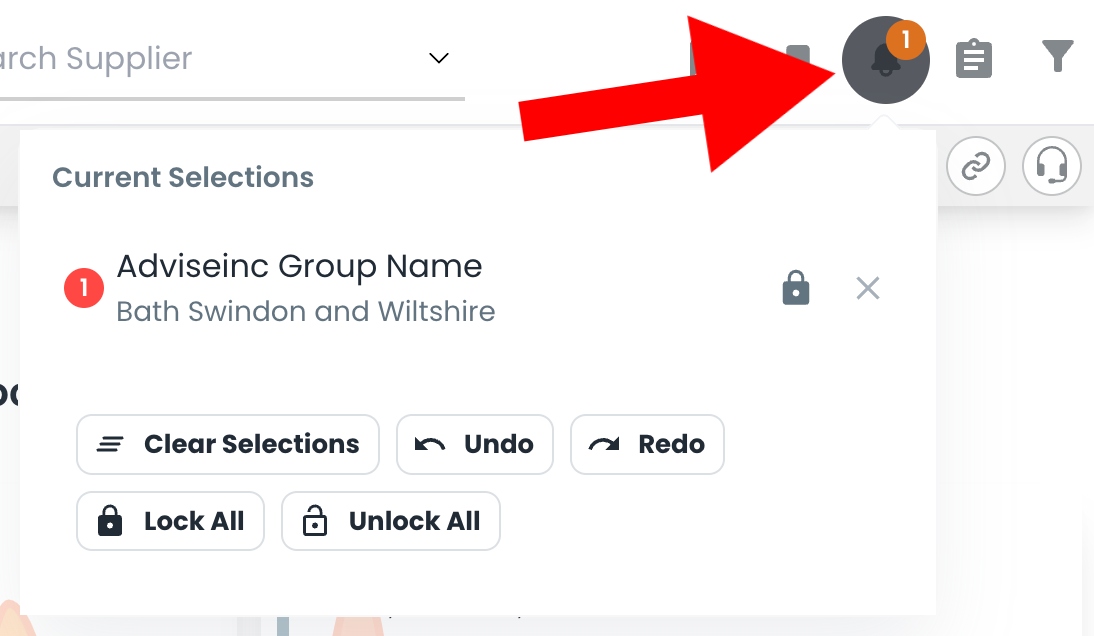
5. Finally, you have the option to manage your selections via the 'bell' icon. As the image shows, you can clear all selections, lock/unlock all selections, and undo or redo the previous action here.
Notes And Tips
- If you wish to clear a selection, you'll need to make sure it is unlocked. You can check this by clicking on the selection and looking at the padlock. If it is locked the padlock will be closed, you can toggle between locked and unlocked by simply clicking on the padlock for the appropriate selection.
If you have any questions, please don’t hesitate to get in touch at support@adviseinc.co.uk or phone us on 0207 112 9222.
Was this article helpful?
That’s Great!
Thank you for your feedback
Sorry! We couldn't be helpful
Thank you for your feedback
Feedback sent
We appreciate your effort and will try to fix the article