Applying Date Filters
Modified on Wed, 14 Aug, 2024 at 2:42 PM
TABLE OF CONTENTS
Introduction
This article will explain how to apply date filters using the AdviseInc Platform. It will also show how to use advanced Boolean searches with dates.
Step-by-Step Guide
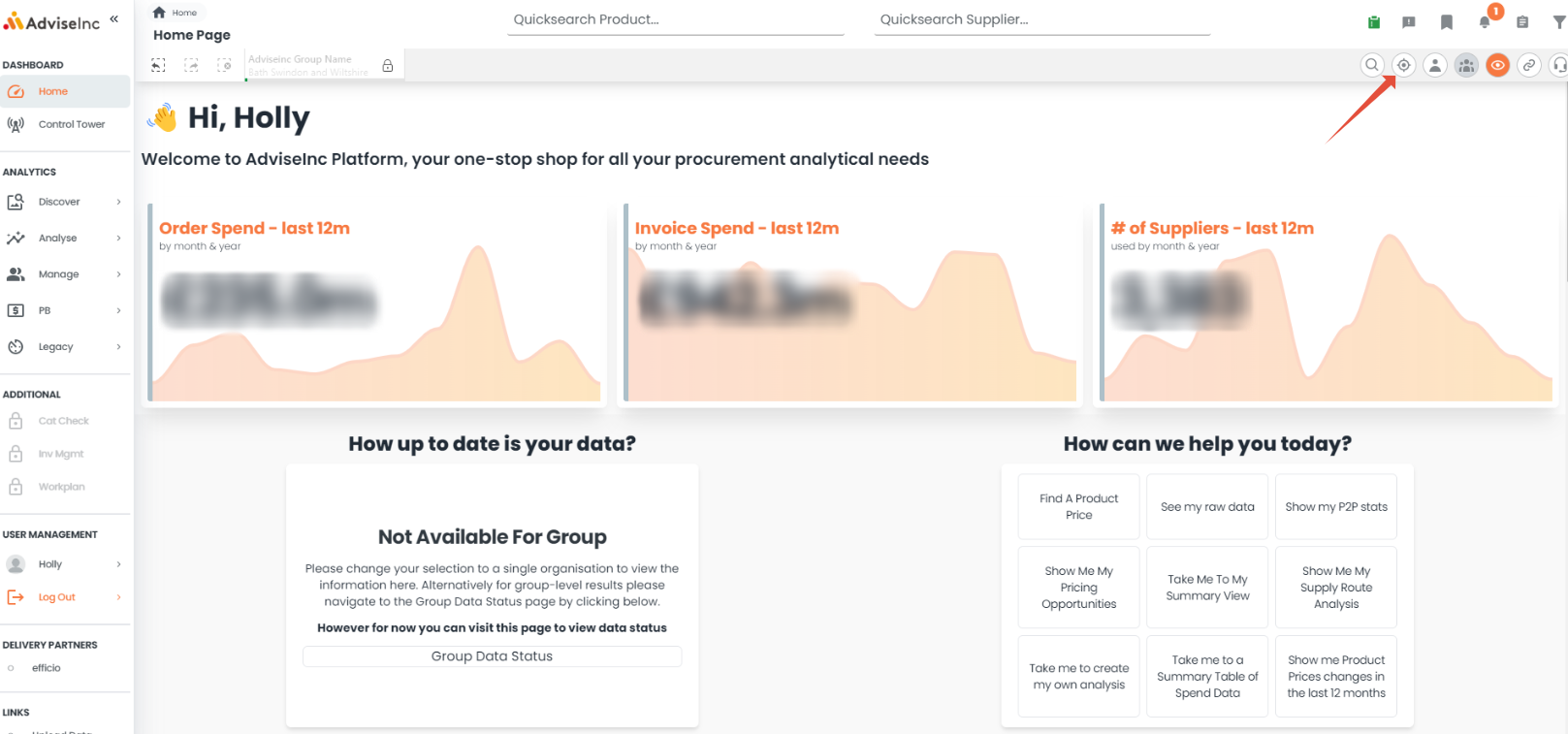
1. Select the target icon in the top right-hand side of any page. This will bring up the quick filters bar.
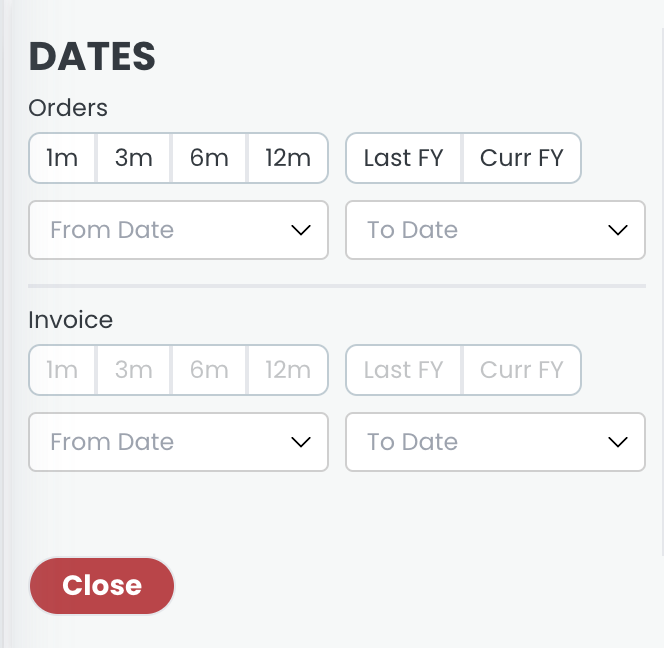
2. On the left-hand side of quick filters, are the date options. "Orders" filters by PO dates, and "Invoice" filters by Invoice dates.
3. You can filter by current/previous Fiscal Year, the recent 1/3/6/12 month period, or between a custom date range by using the 'From Date' and 'To Date' dropdowns.
Advanced Boolean Guide
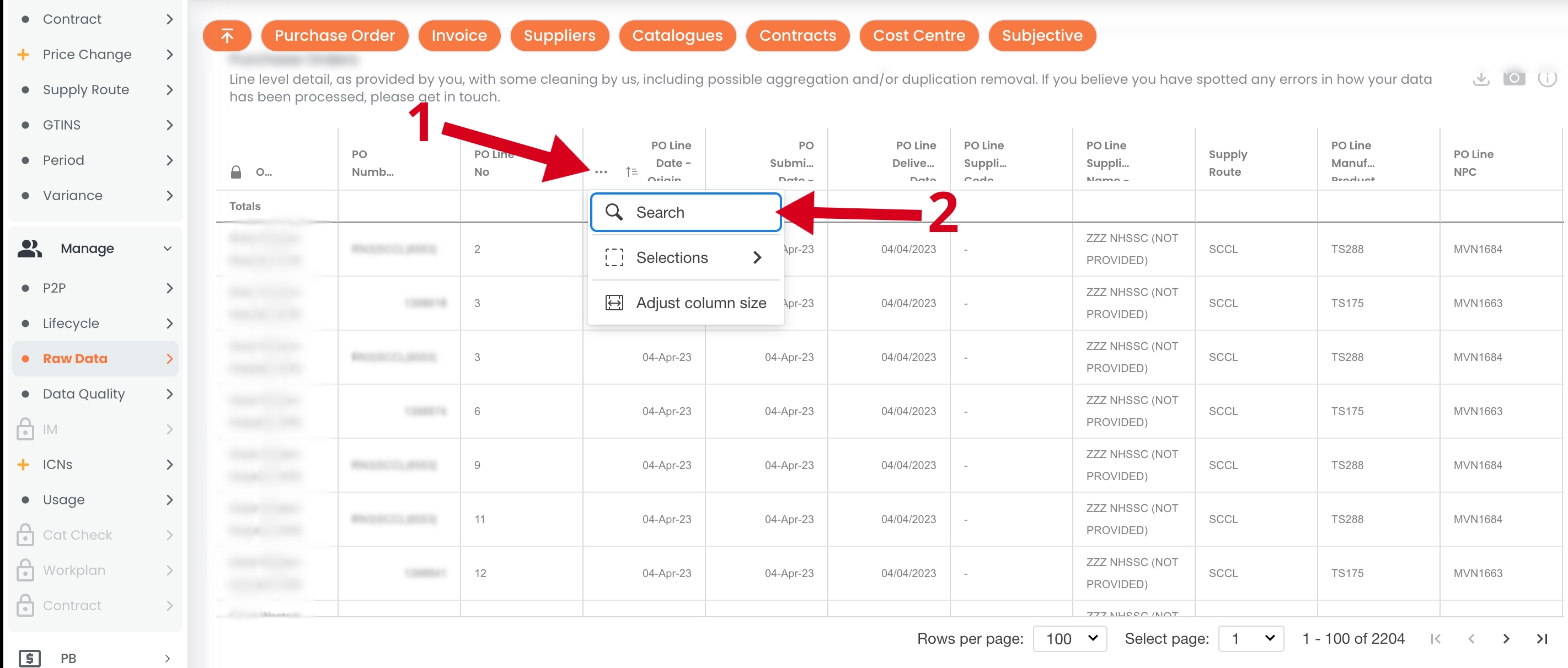
1. For advanced date range searches, you can use our Boolean search function. This uses "less than" - "DD-MMM-YY >", and "more than" - "DD-MMM-YY <". Include '=' after the '>' or '<', to include the given date. You can apply this on any table with a date field.
2. Click on the three dots beside the header, then click the search button.
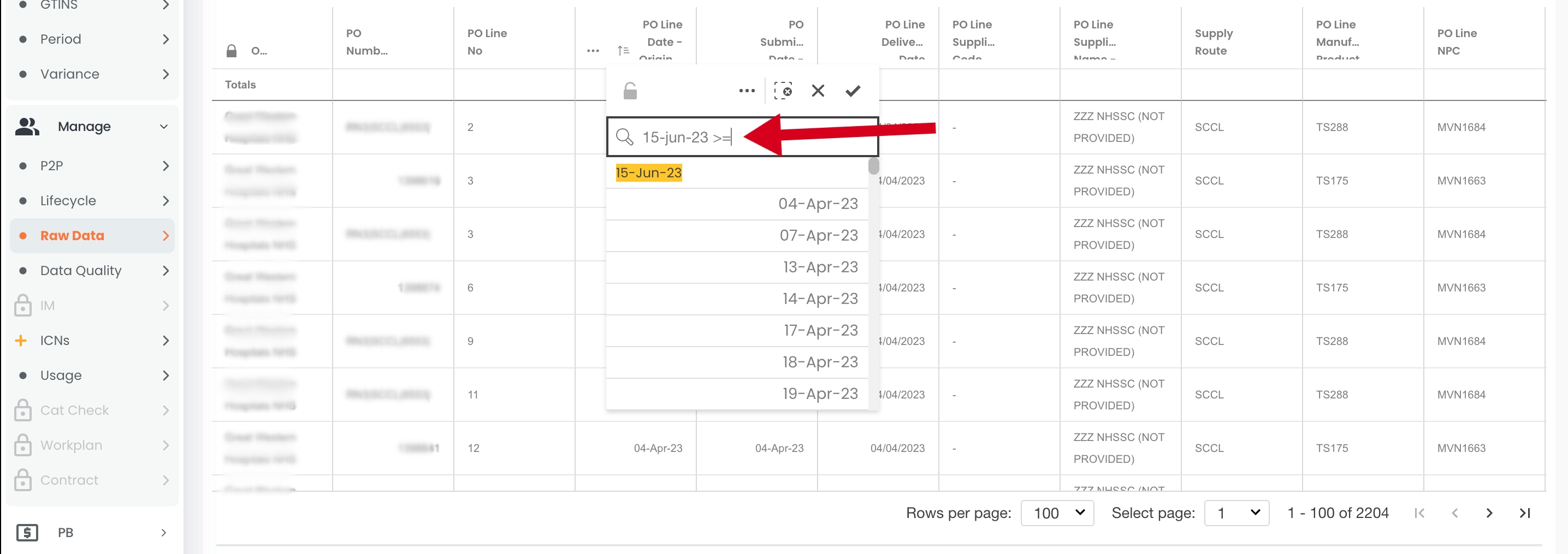
3. In the search bar, enter the date, then the desired Boolean term, and press enter to apply, eg. 15-Jun-23 >=, which means dates on and before the 15th June 23.
If you have any questions, please don’t hesitate to get in touch at support@adviseinc.co.uk or phone us on 0207 112 9222.
Was this article helpful?
That’s Great!
Thank you for your feedback
Sorry! We couldn't be helpful
Thank you for your feedback
Feedback sent
We appreciate your effort and will try to fix the article