Manipulating Tables
Modified on Thu, 13 Jul, 2023 at 3:50 PM
TABLE OF CONTENTS
Introduction
This article will demonstrate the ways in which you can manipulate tables in the AdviseInc Platform.
Step-by-Step Guide
1. Identify the table you wish to look at.
Sorting the table
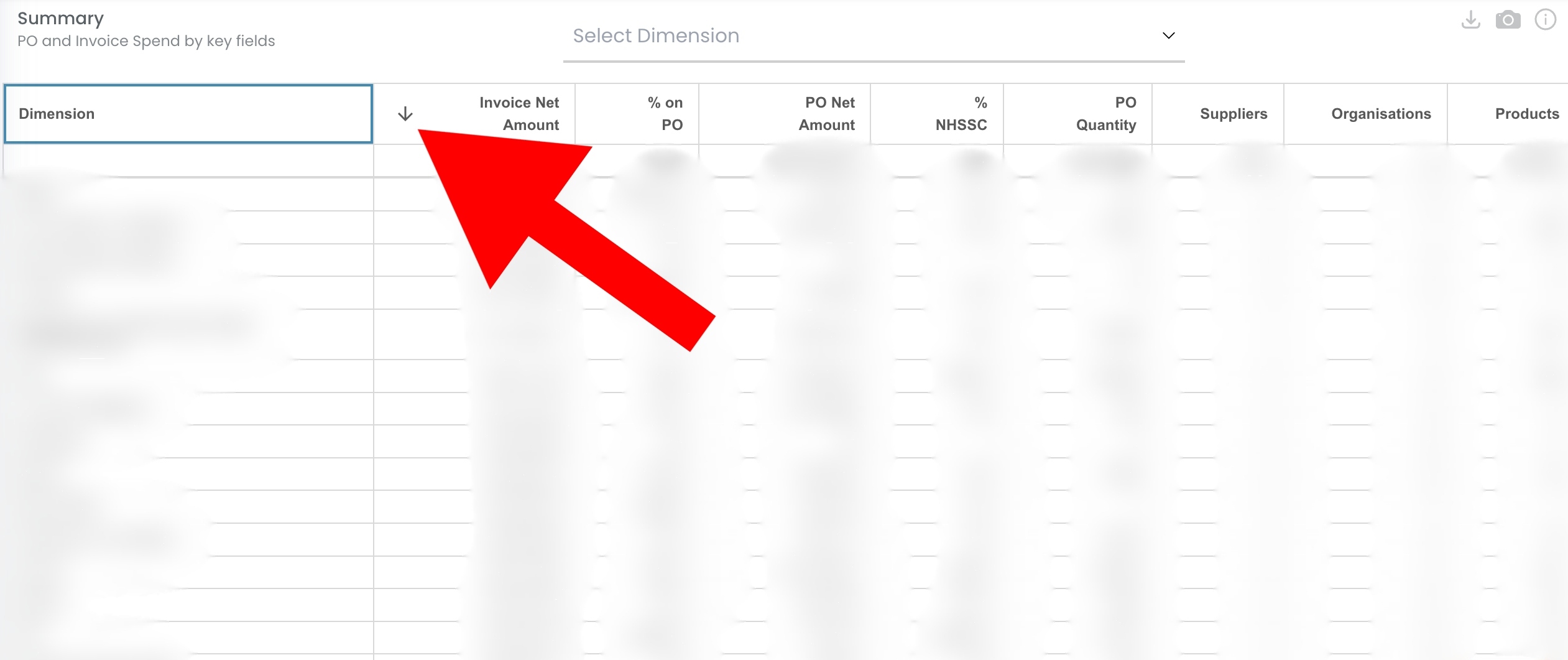
2. To sort your table by a specific column, simply click on the column in question. You'll know which column you're sorting by, as they'll be an upward/downward arrow next to the heading. A downward arrow indicates the data is sorted largest to smallest, whereas an upward arrow displays the data smallest to largest. You can switch between the two by double-clicking the column.
Changing dimensions
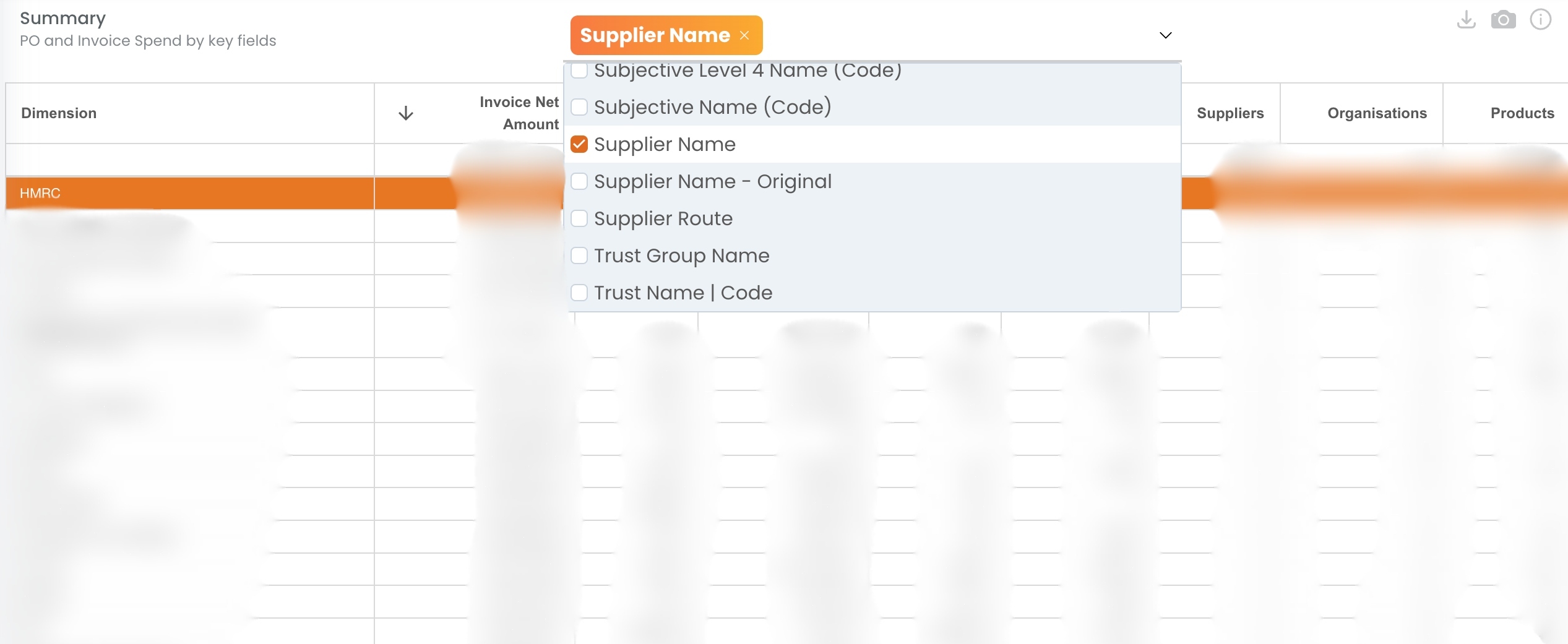
3. You can change the dimension of your table using the 'Select Dimension' dropdown. Either scroll through the dimensions or search for a specific one.
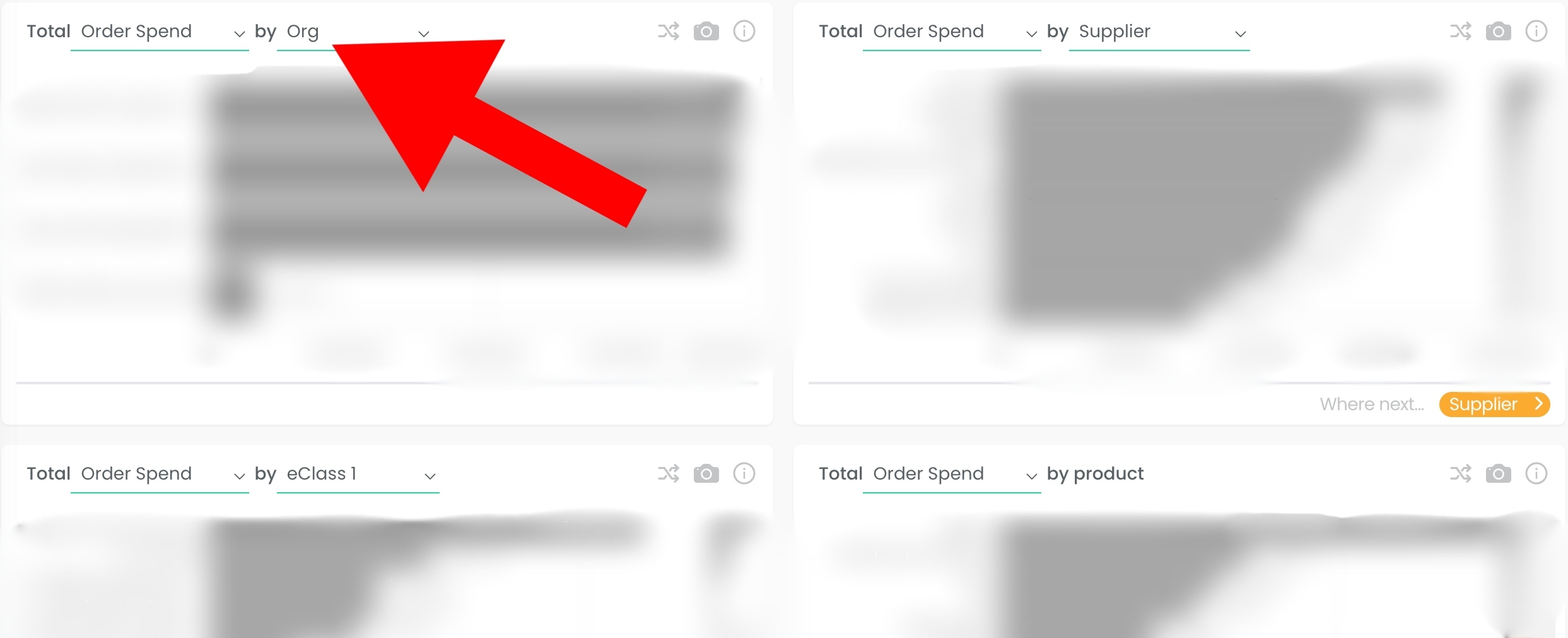
4. Using the dropdown options, you can edit the selections displayed in charts within the Platform.
Switching to tables or graphs
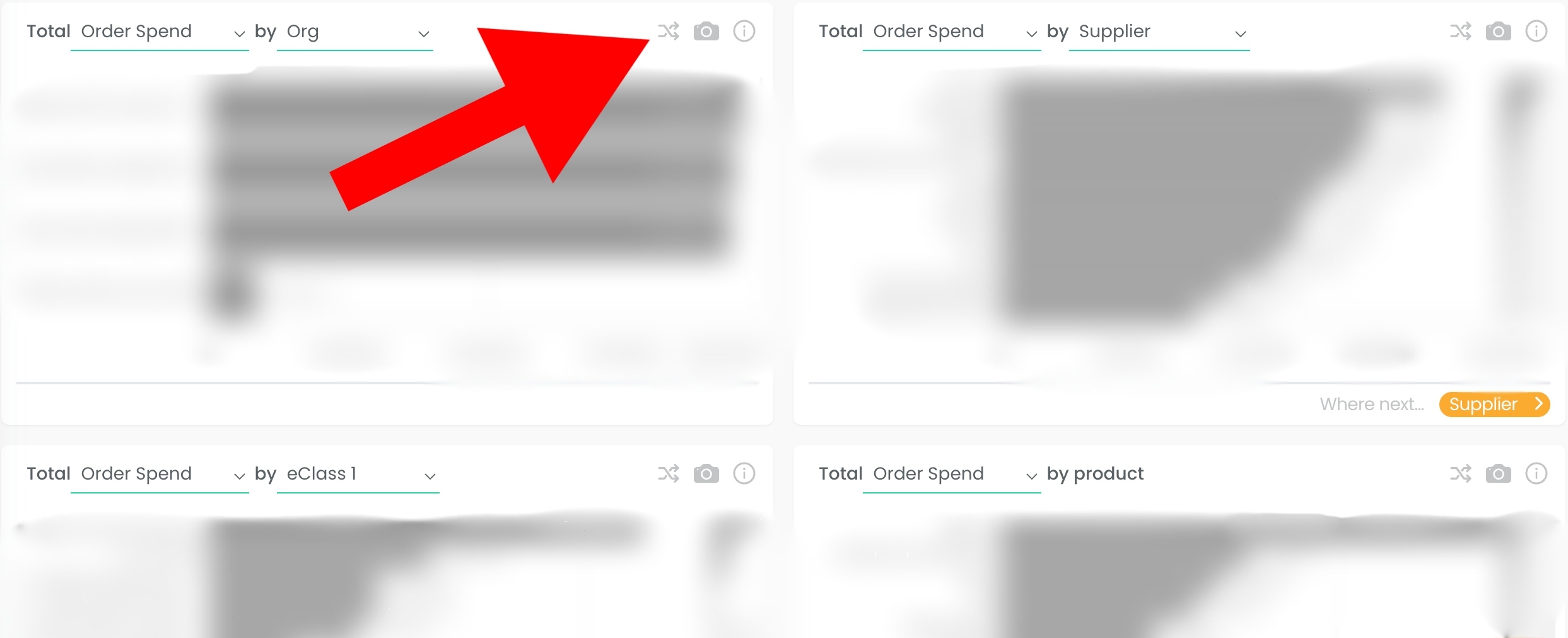
5. You can also switch between table and graph views using the button highlighted below.
Searching within a table
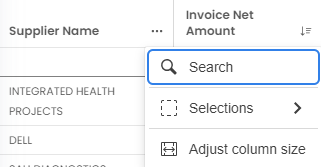
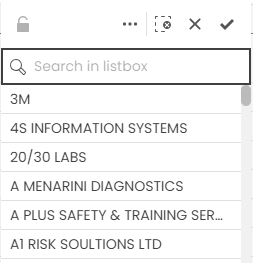
6. To filter or search within a table click the ellipse next to the header name and select Search. You can then either select or click and drag to select your desired selection from the list or use the 'Search in listbox' to filter the selections down. Click the tick to apply your selections.
If you have any questions, please don’t hesitate to get in touch at support@adviseinc.co.uk or phone us on 0207 112 9222.
Was this article helpful?
That’s Great!
Thank you for your feedback
Sorry! We couldn't be helpful
Thank you for your feedback
Feedback sent
We appreciate your effort and will try to fix the article