How to Select Your Organisation / Your Group
Modified on Wed, 11 Sep, 2024 at 4:12 PM
TABLE OF CONTENTS
Introduction
This article explains how you can filter by your organisation or your group when using the AdviseInc Platform. There are two options, either using the action icons or the Filters.
Step-by-Step Guide - using the 'My Group'/'My Organisation' button
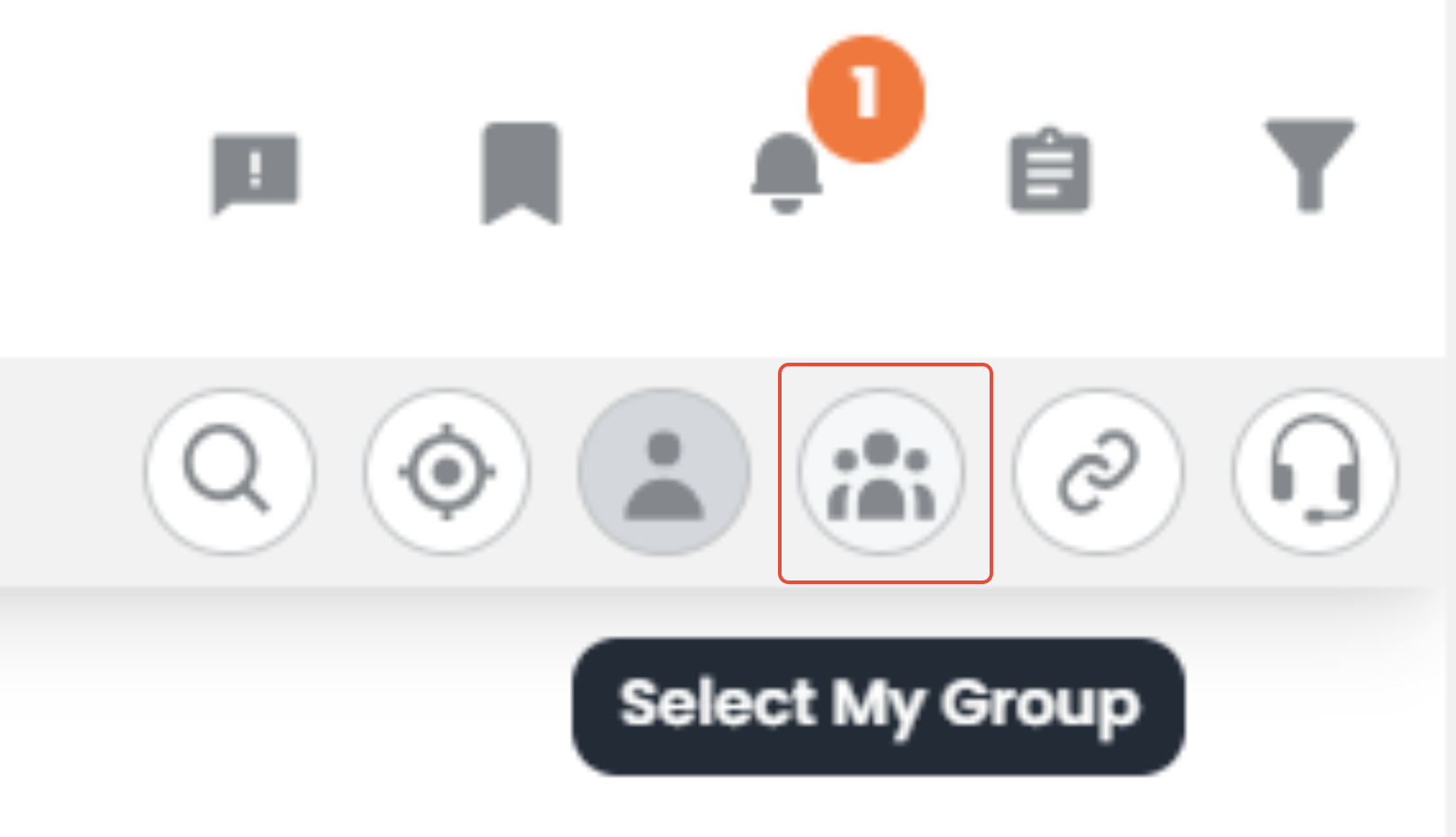
1. To select your group click the icon of 3 people on the top right of the screen, highlighted in the red square below. By clicking this button it will change your view to see your group.
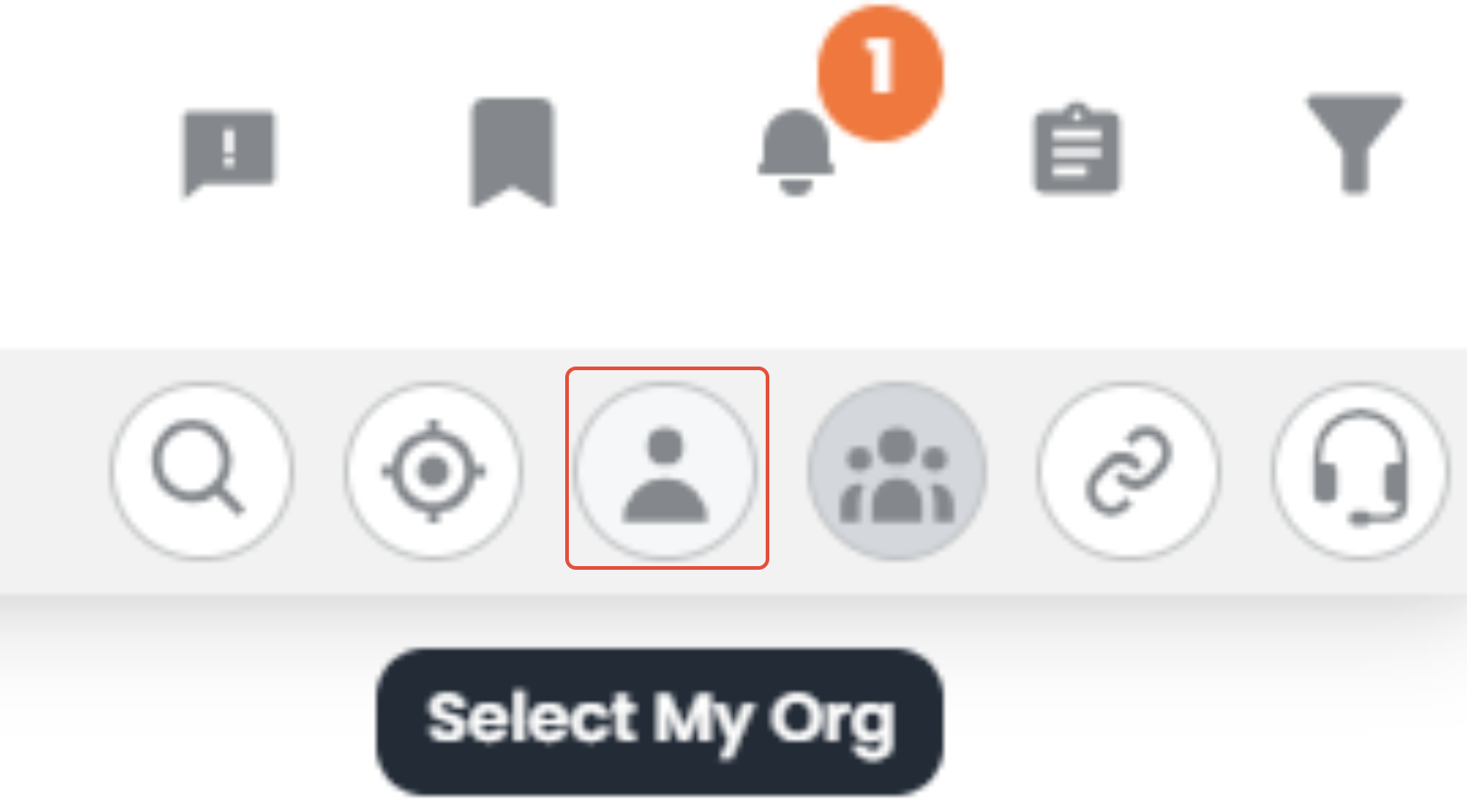
2. To select your organisation click the icon of one people on the top right of the screen, highlighted in the red square below. By clicking this button it will change your view to see your organisation.
Step-by-Step Guide - using the filters
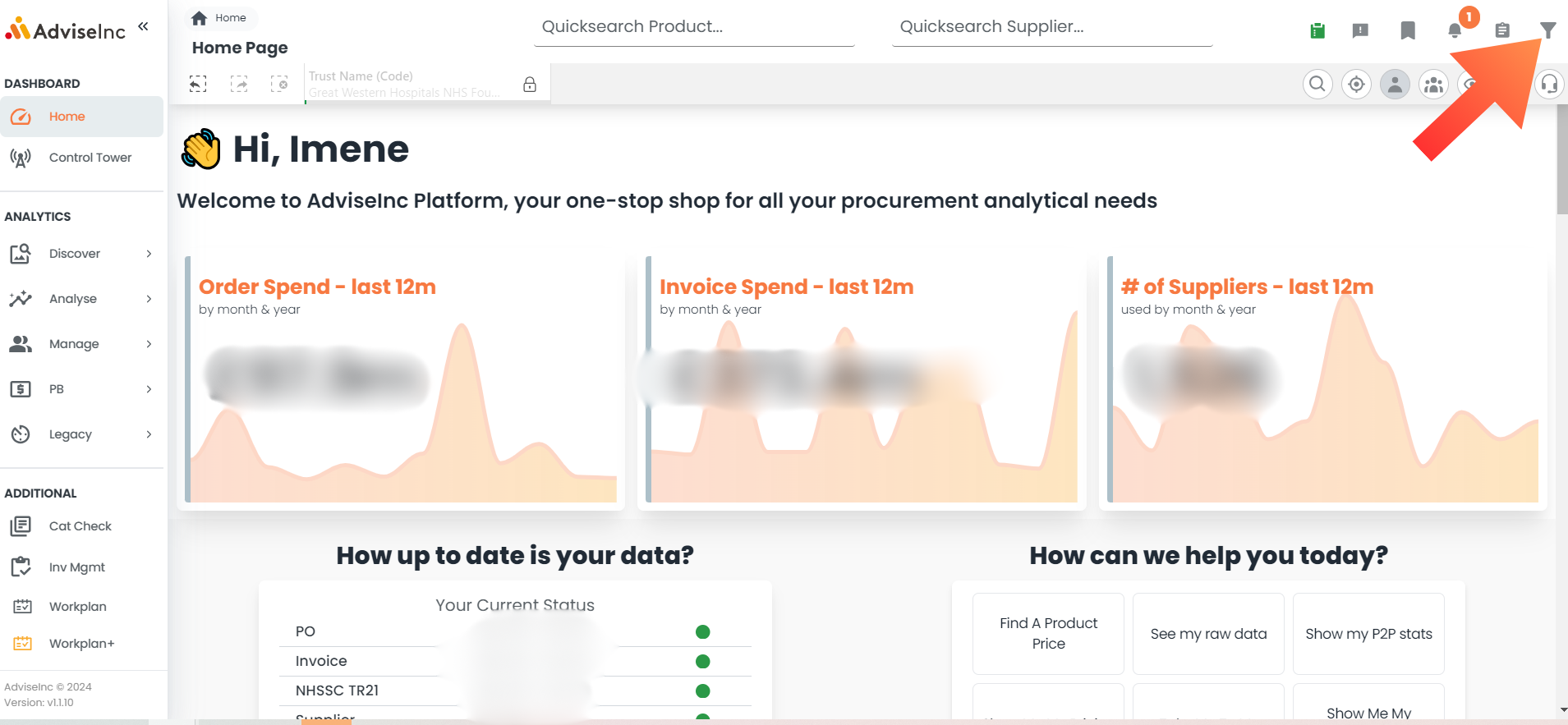
1. To select your own organisation, click the filters option in the top right corner.
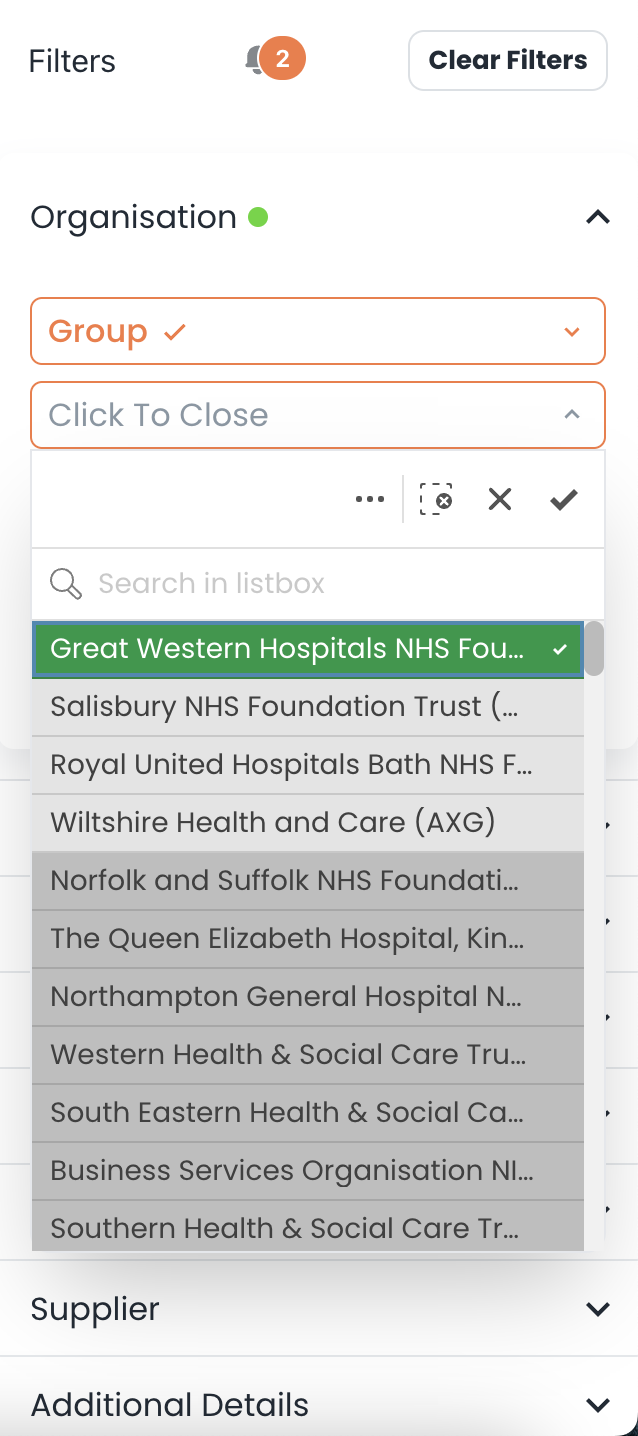
2. Select the 'Organisation' filter, here you can choose to filter by a number of options. For this example click on the 'Select Organisation' box.
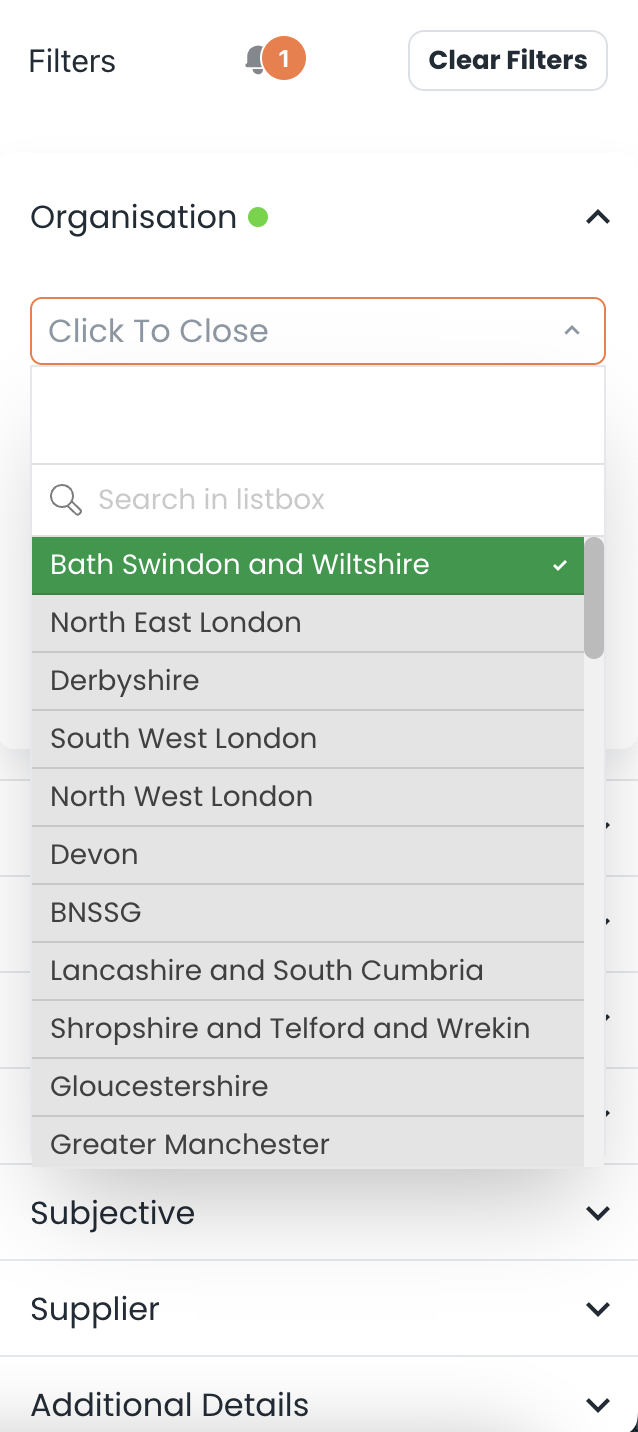
3. A drop-down will appear with all Organisations. If you have a group selected, the organisations associated with the group will appear at the top of the list. You can click on as many as you want, simply click out of the filters when you have made your selection.
Notes And Tips
Please note that if you have a group locked you will need to unlock this and remove it to select organisations outside of the group.
If you have any questions, please don’t hesitate to get in touch at support@adviseinc.co.uk or phone us on 0207 112 9222.
Was this article helpful?
That’s Great!
Thank you for your feedback
Sorry! We couldn't be helpful
Thank you for your feedback
Feedback sent
We appreciate your effort and will try to fix the article