How to View Direct or Supply Chain Spend
Modified on Wed, 14 Aug, 2024 at 3:21 PM
TABLE OF CONTENTS
Introduction
This FAQ will demonstrate how you can view Direct Spend or Supply Chain Spend in the AdviseInc Platform.
Step-by-Step Guide
Direct Spend
1. Navigate to the quick filters panel as shown in the below image.
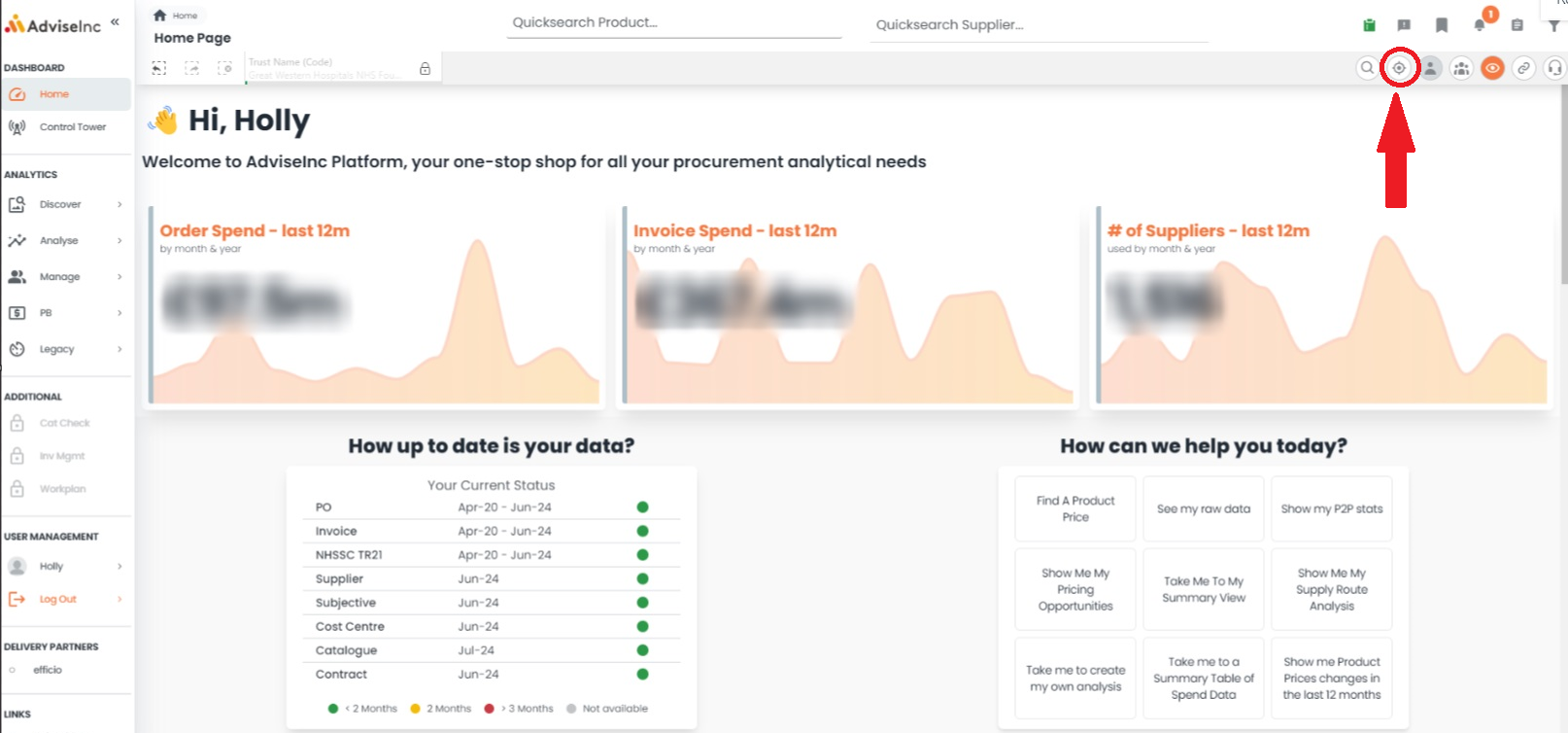
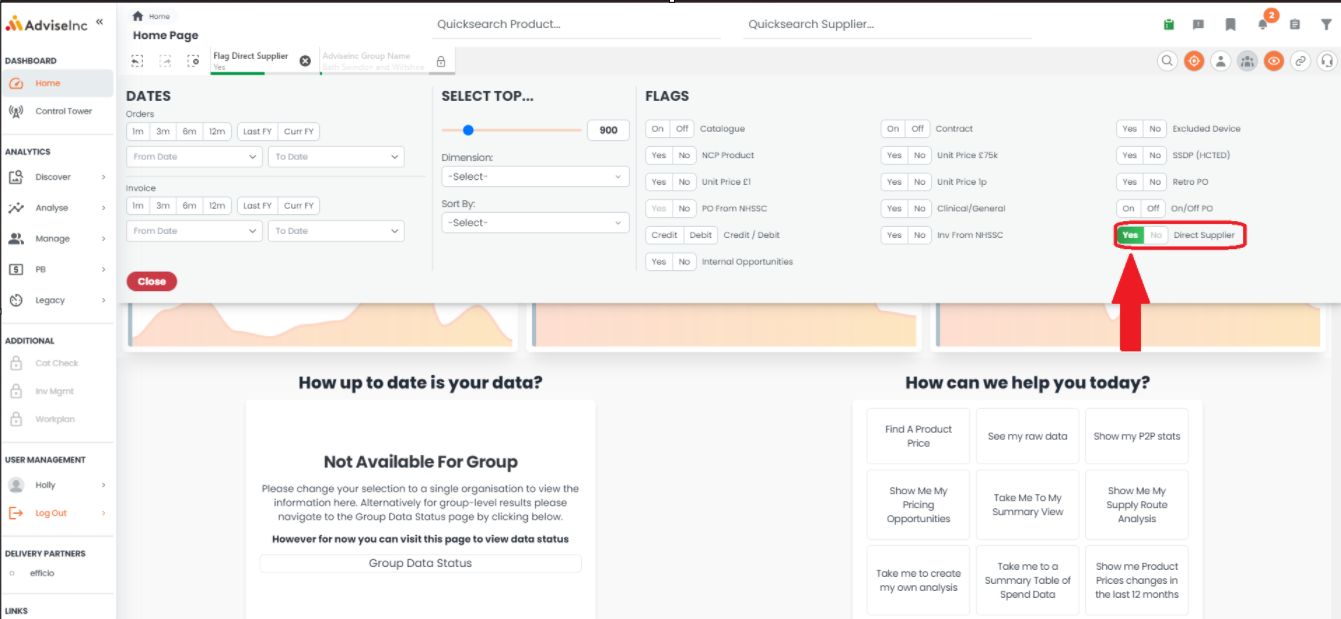
2. Select yes on the 'Direct Supplier' Flag. This filter will now be applied whilst you navigate through the Platform.
Supply Chain Spend
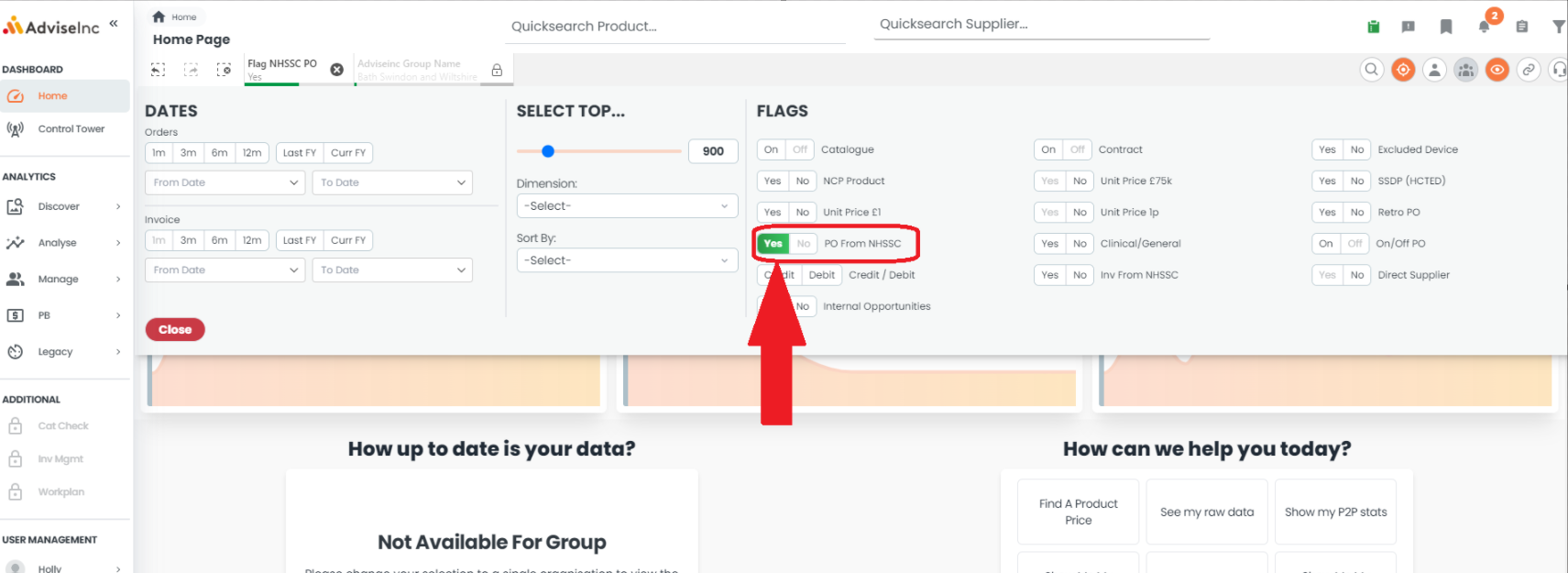
1. Navigate to the quick filters panel and select yes on 'PO from NHSSC'. This filter will now be applied whilst you navigate through the Platform.
Notes And Tips
1. You can also compare spend by supply route easily by going to the 'Analyse' section, then selecting the 'Supply Route' page.
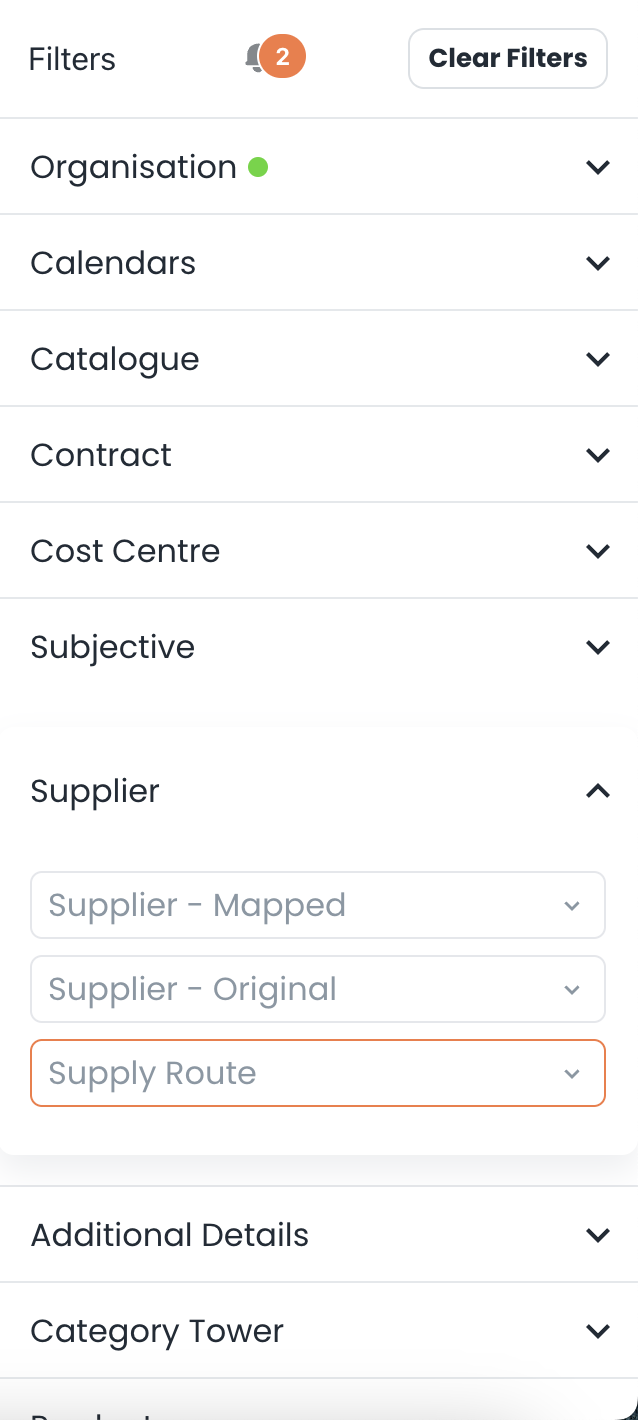
2. You are also able to use the filters panel to view by supply route. Select the 'Supplier' option, then choose your supply route from the 'Select Supplier Route' options.
If you have any questions, please don’t hesitate to get in touch at support@adviseinc.co.uk or phone us on 0207 112 9222.
Was this article helpful?
That’s Great!
Thank you for your feedback
Sorry! We couldn't be helpful
Thank you for your feedback
Feedback sent
We appreciate your effort and will try to fix the article