How to Exclude Selections from your Results
Modified on Fri, 28 Jul, 2023 at 5:18 PM
TABLE OF CONTENTS
Introduction
This article shows you how to exclude specific selections, e.g. suppliers, from your results.
Step-by-Step Guide
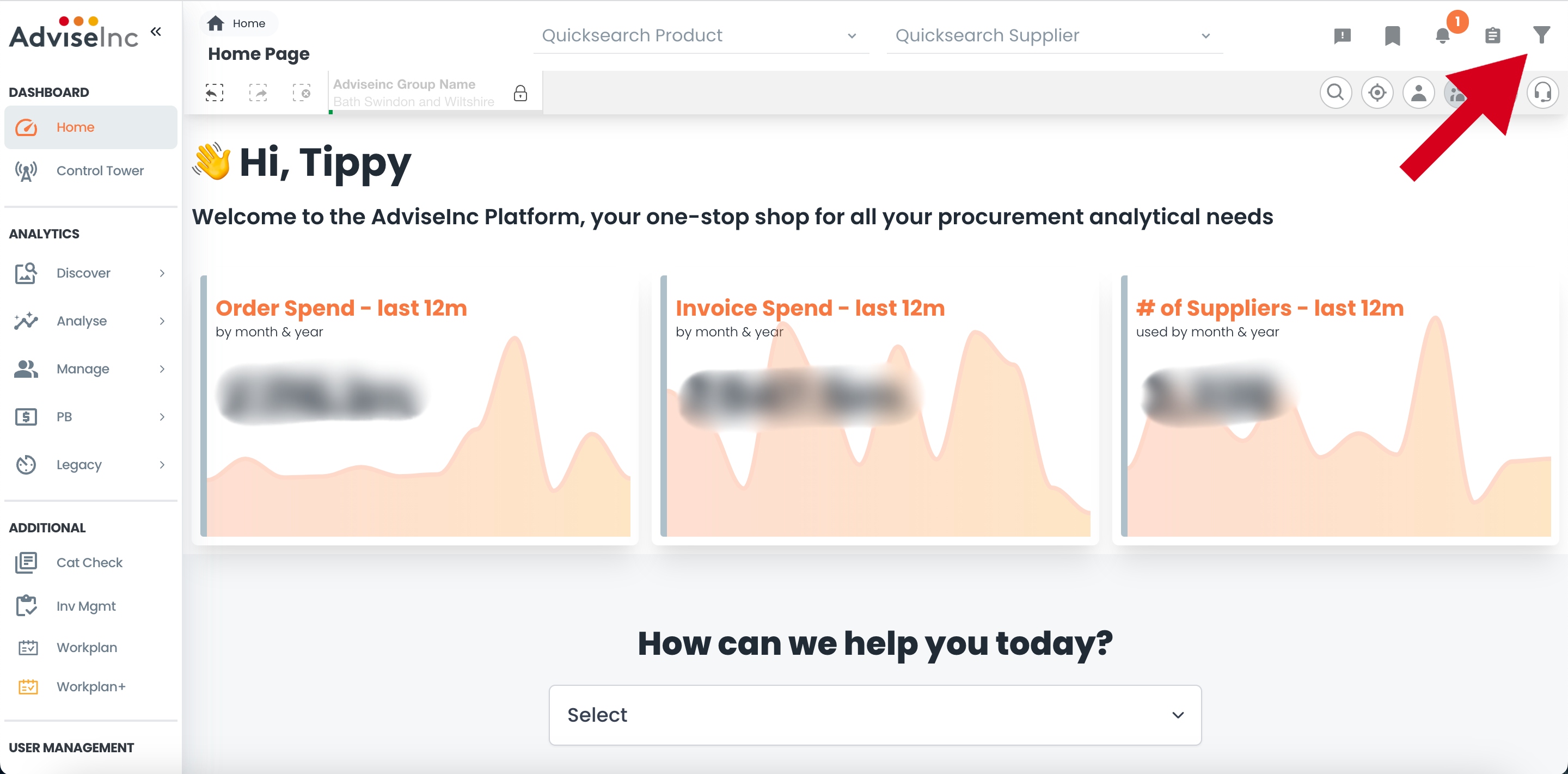
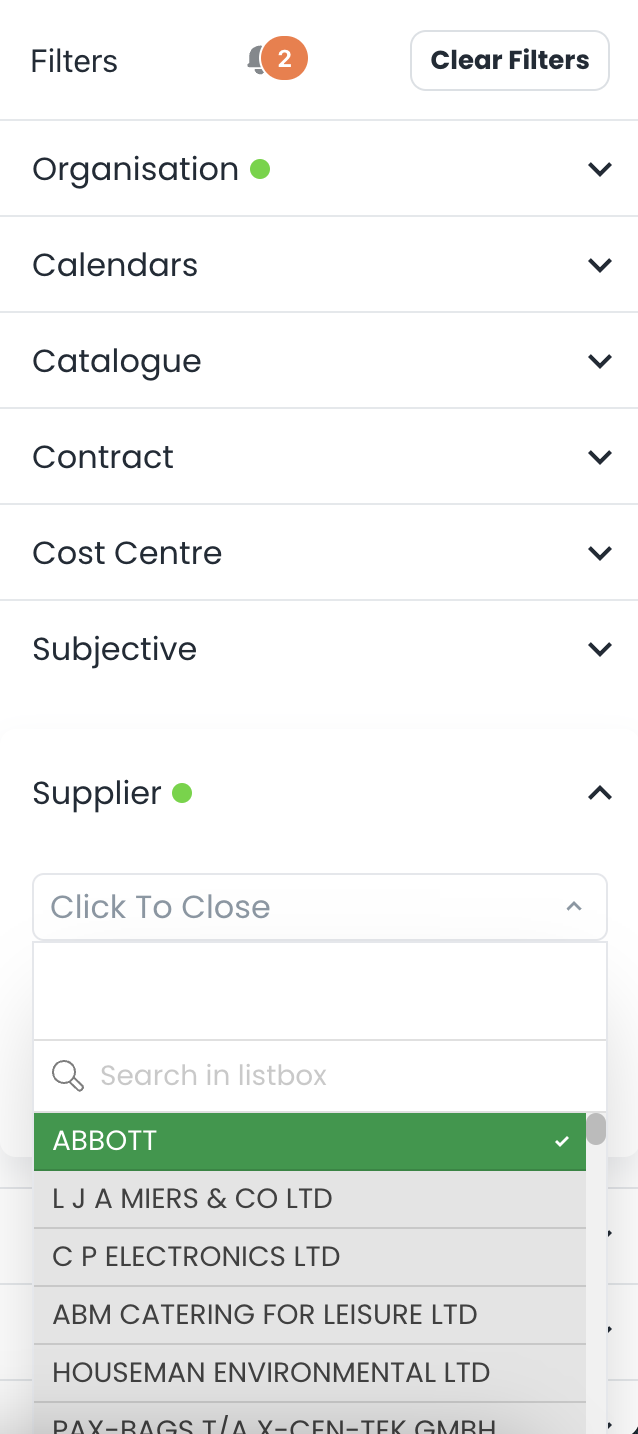
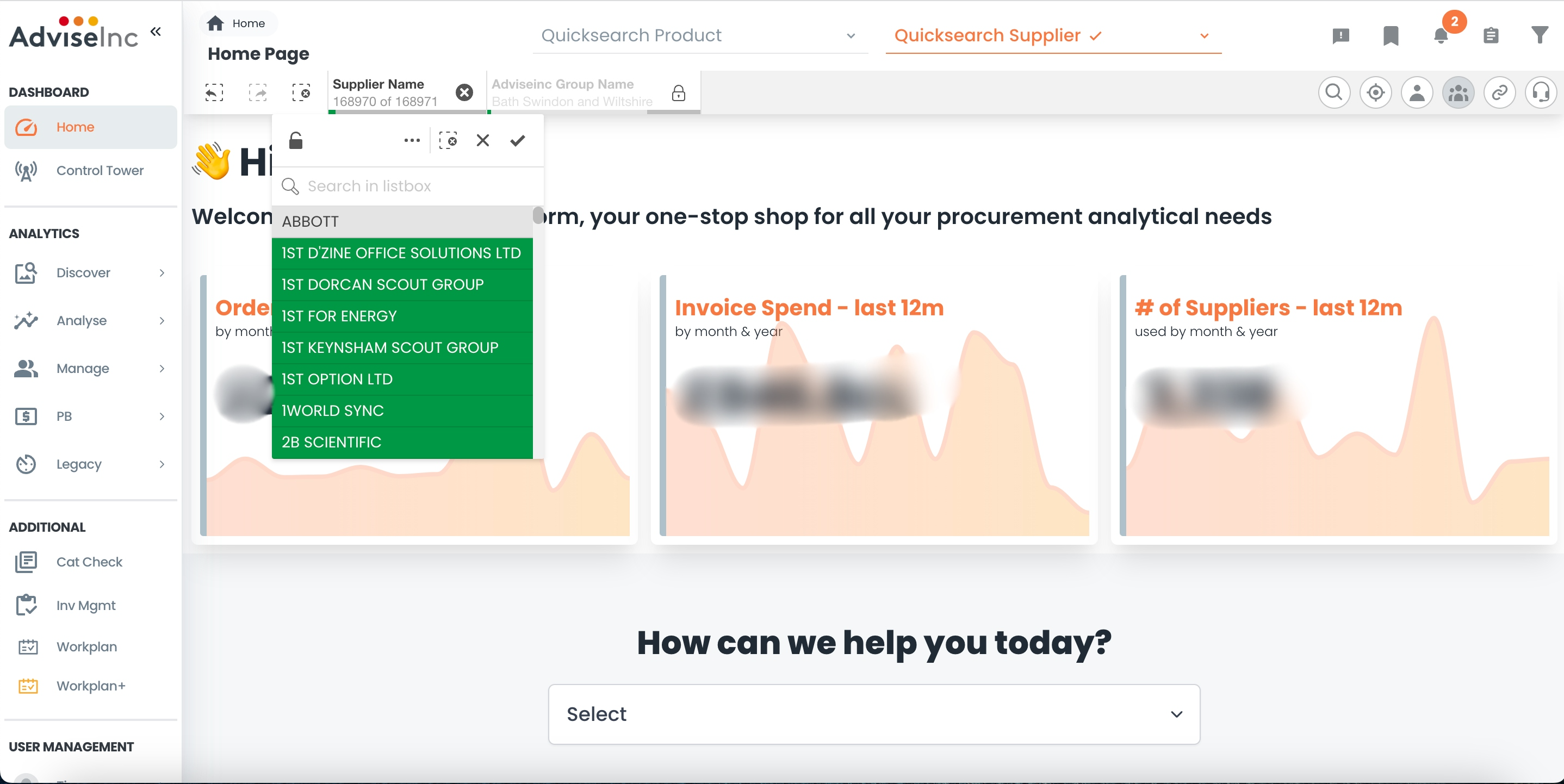
1. Add the selections you wish to exclude from your results as your filters. For example if I wish to exclude Abbott from the suppliers I would add Abbott as my filter.
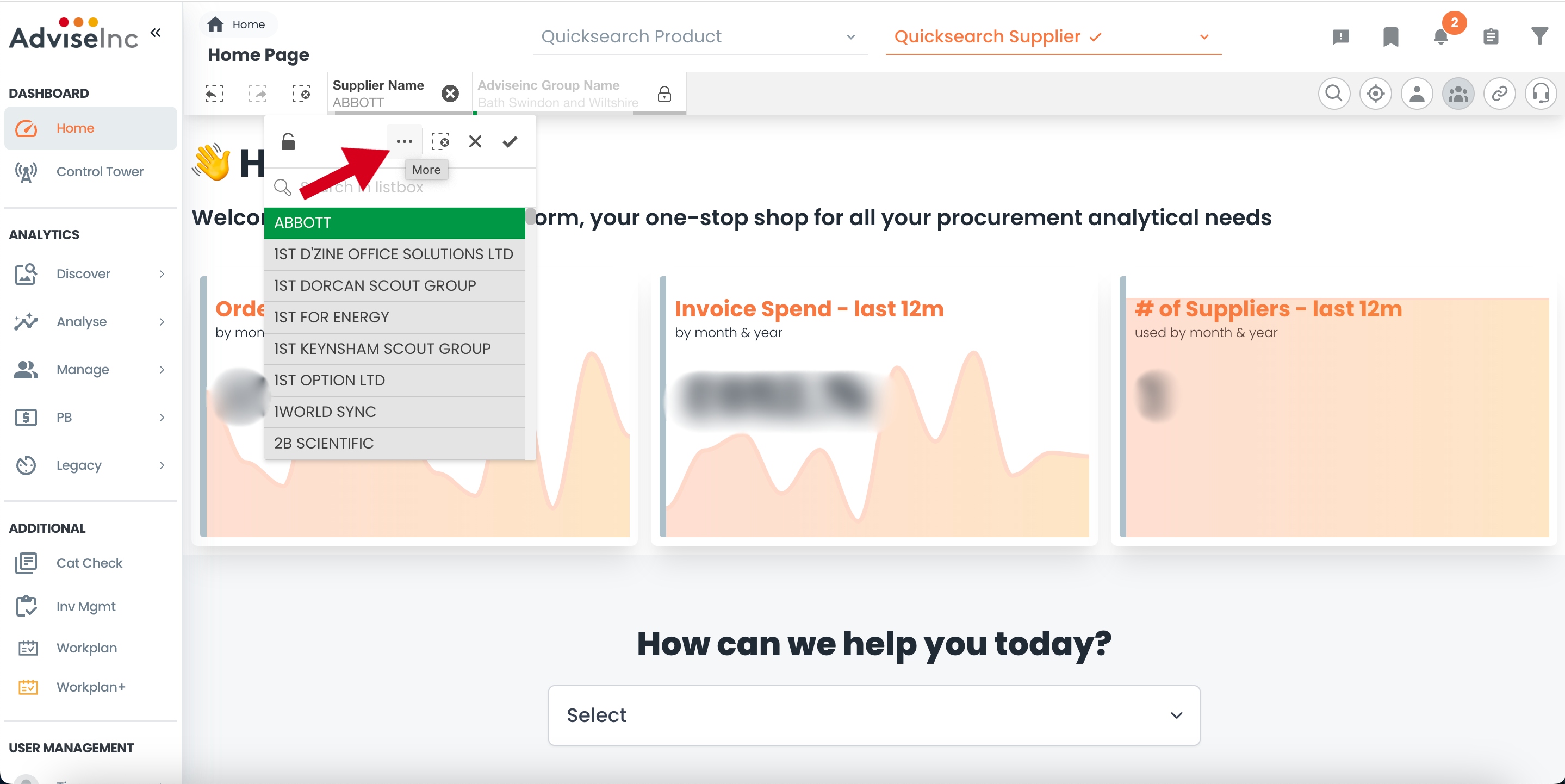
2. Once you have selected the filters you wish to exclude, select the current selections bar and click on the filter selections (the three dots) as shown below.
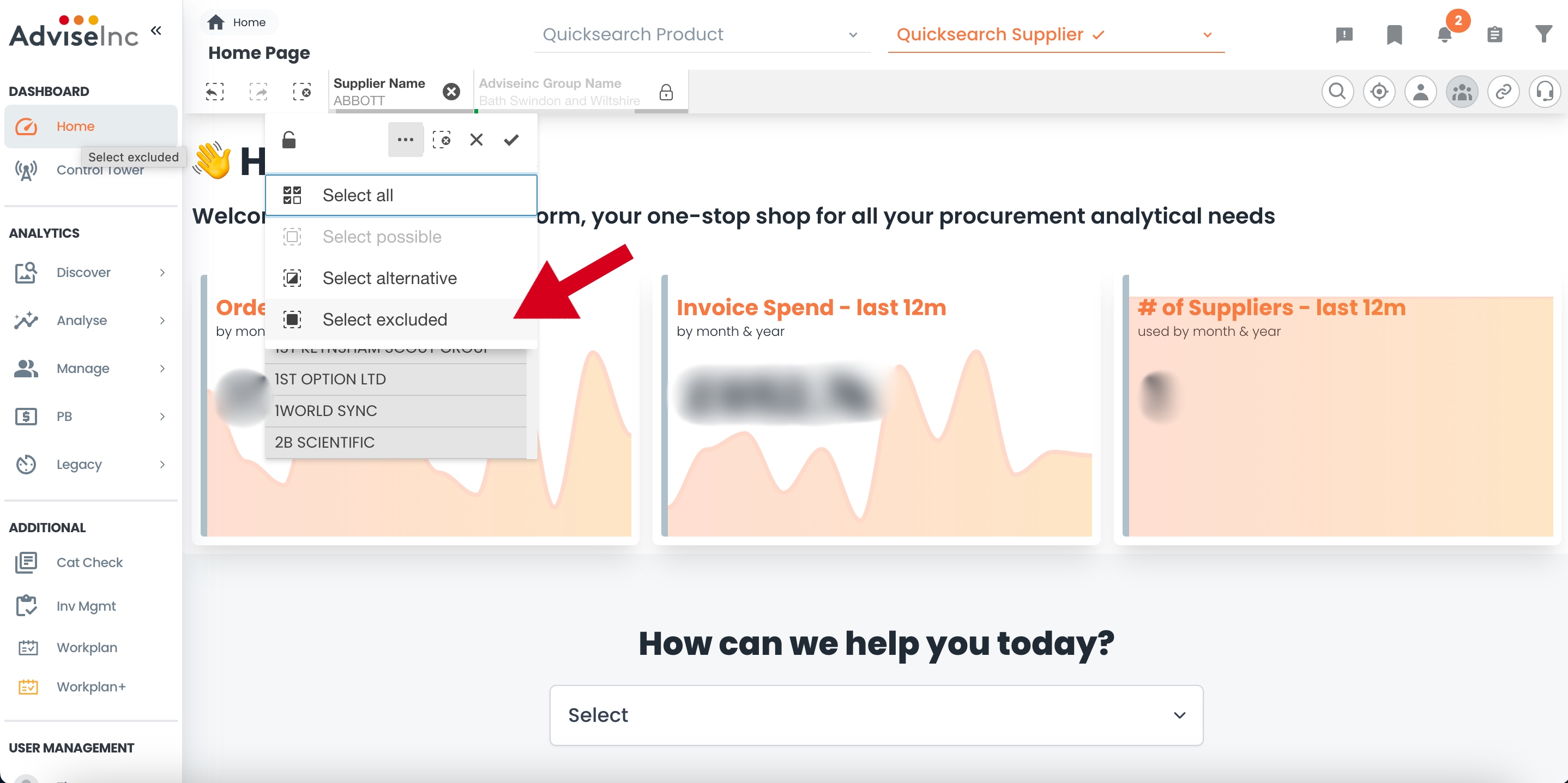
3. From this list, you can then select the 'Select excluded' option, this will filter to all of the available selections which were not originially selected (using this example, all suppliers other than Abbott would be selected).
Notes And Tips
- This feature is not exclusive to suppliers, but can be used for other filters.
If you have any questions, please don’t hesitate to get in touch at support@adviseinc.co.uk or phone us on 0207 112 9222.
Was this article helpful?
That’s Great!
Thank you for your feedback
Sorry! We couldn't be helpful
Thank you for your feedback
Feedback sent
We appreciate your effort and will try to fix the article