How to view GTINs
Modified on Wed, 6 Sep, 2023 at 10:29 AM
TABLE OF CONTENTS
Introduction
This article explains how to view and check Global Trade Item Numbers (GTINs) that appear in your data and compare them against other organisation's data.
Step-by-Step Guide
1. Use the left-hand navigation bar to select the Analyse section and the GTINs page.
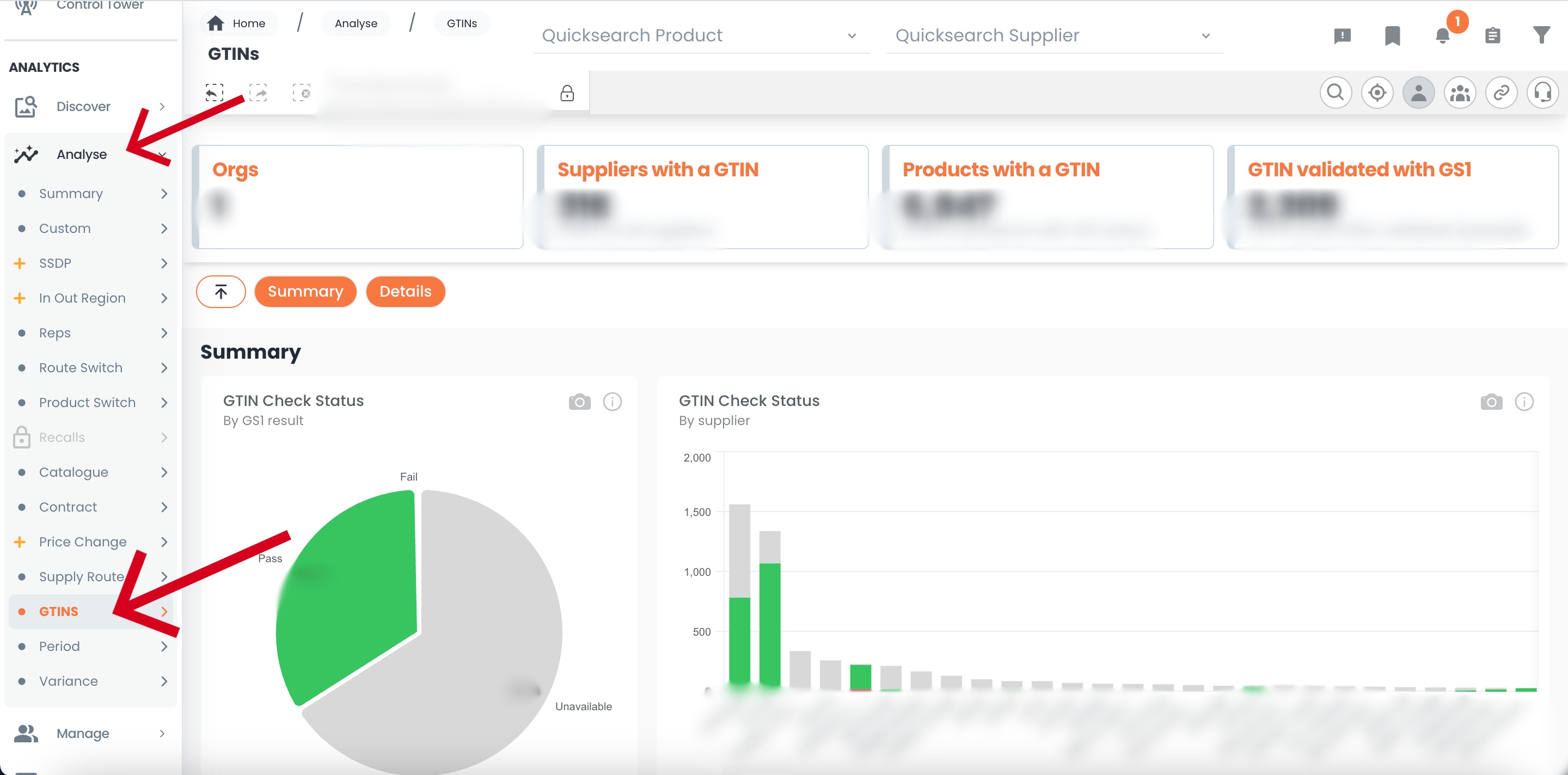
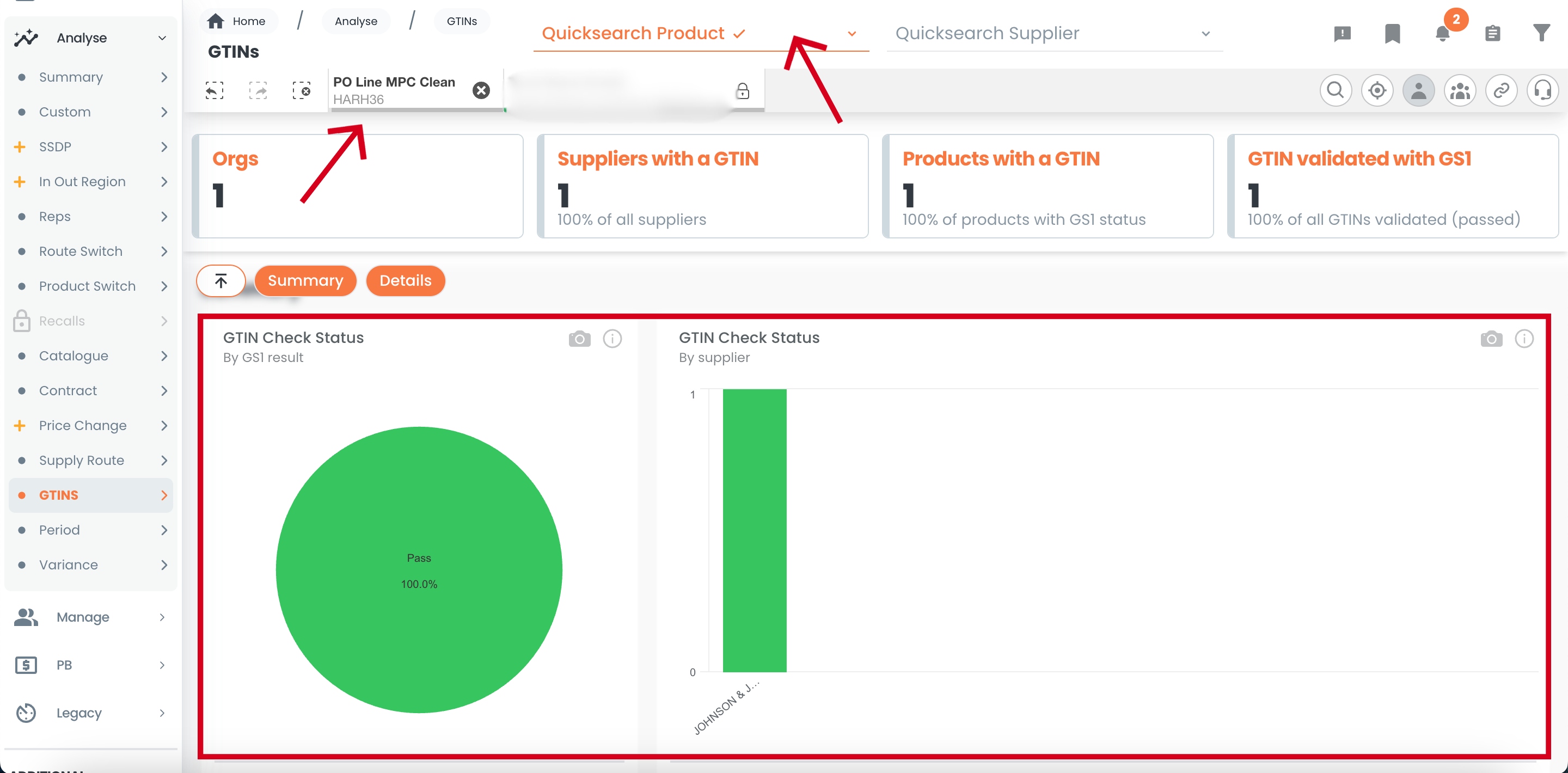
2. To check how many GTINs are genuine, see the pie chart under Summary on the left. The pie chart indicates whether the GTIN has passed or failed. If the GTIN has passed, it is a genuine GTIN. If the GTIN has failed, it is not. If the GTIN is "unavailable", a GTIN has not been provided for that product.
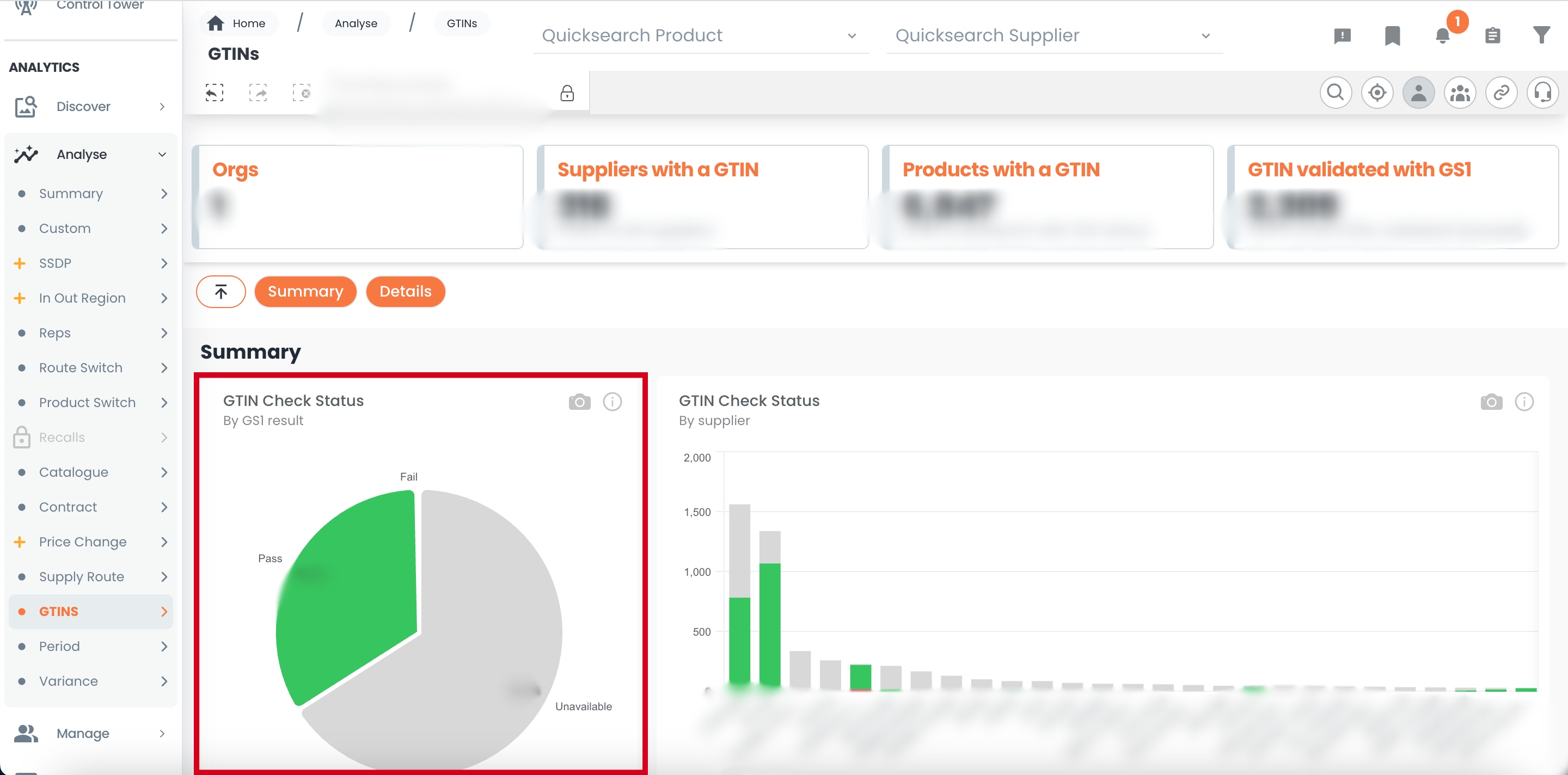
3. To check by supplier, see the bar chart under Summary on the right.
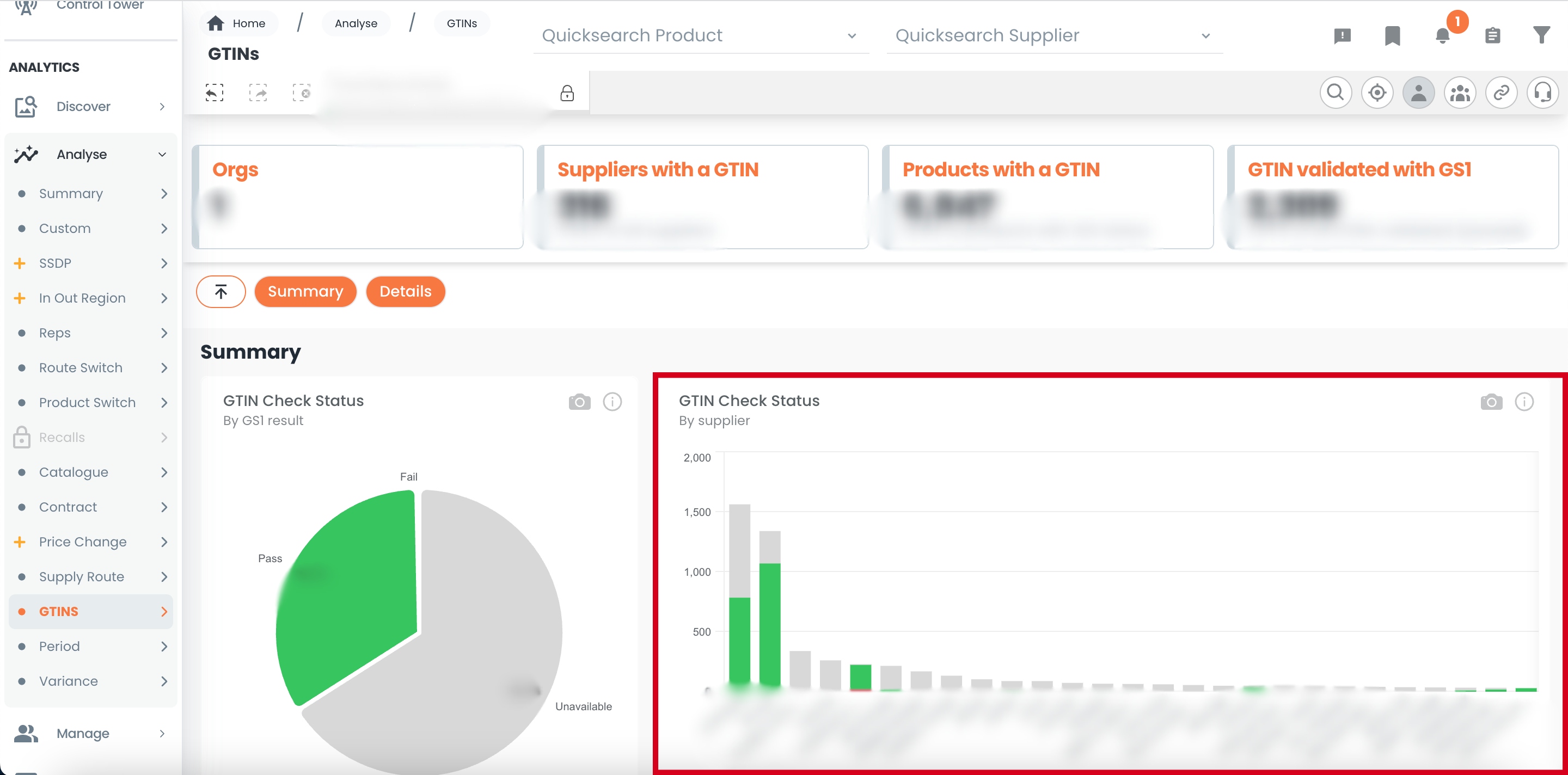
Note that if you select a supplier, the pie chart on the left will filter accordingly.
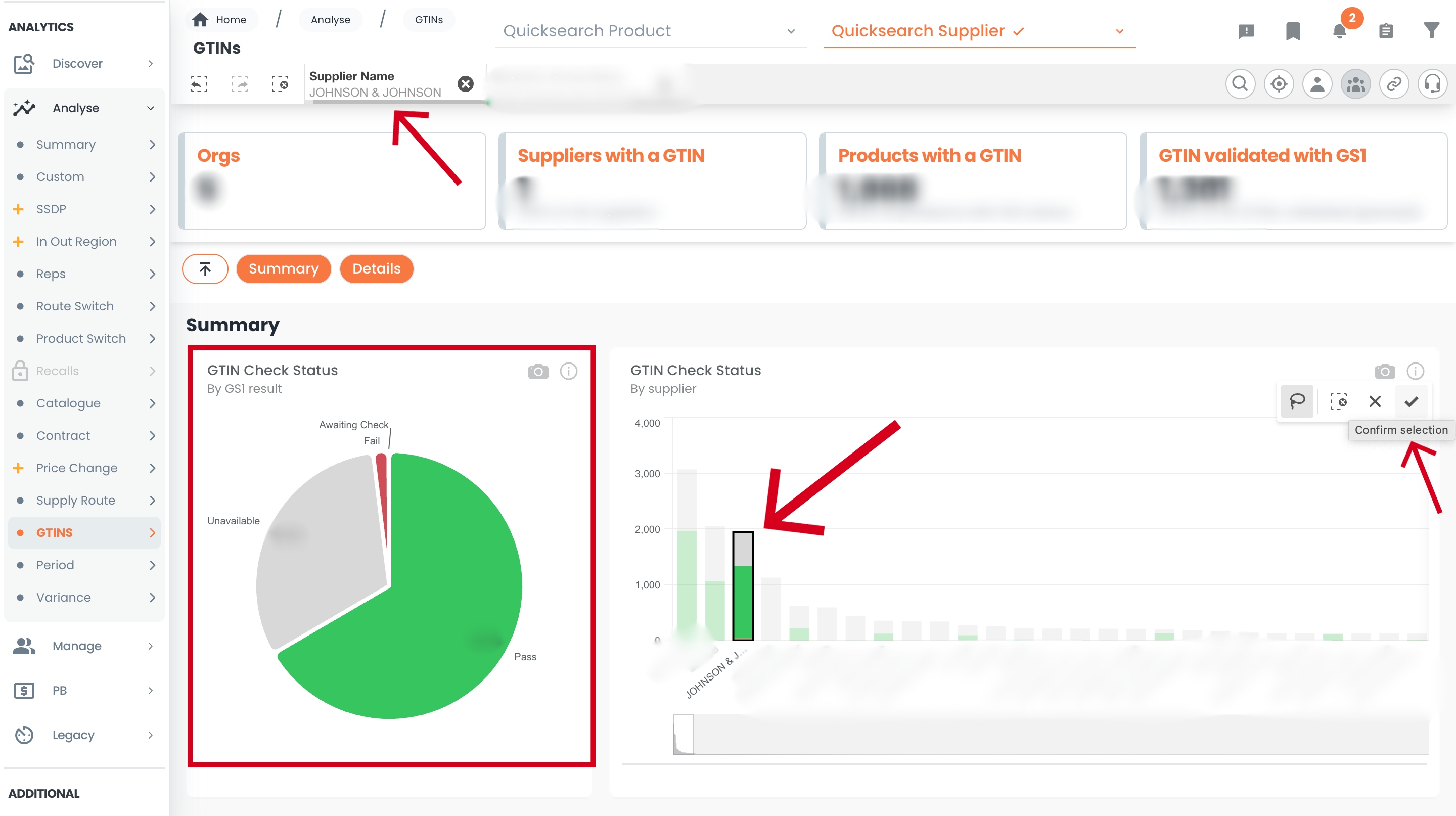
4. To check by product, search and select desired product using quick search or main filters. The pie chart will indicate whether the GTIN for that product has passed, failed, or is unavailable. The bar chart will reflect the supplier for that product.
5. To see line-level GTIN details, scroll down to view the table under 'Details'.
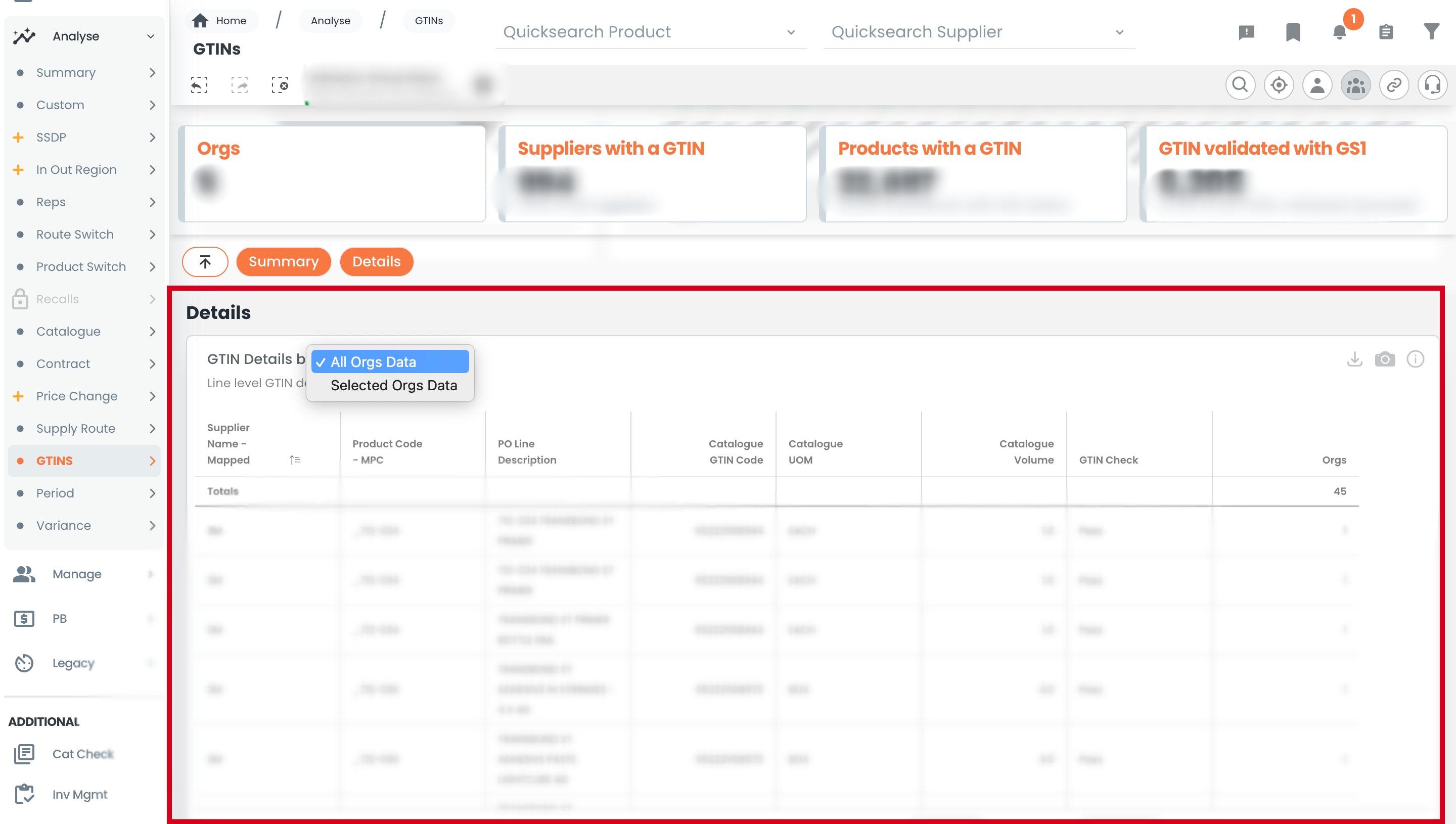
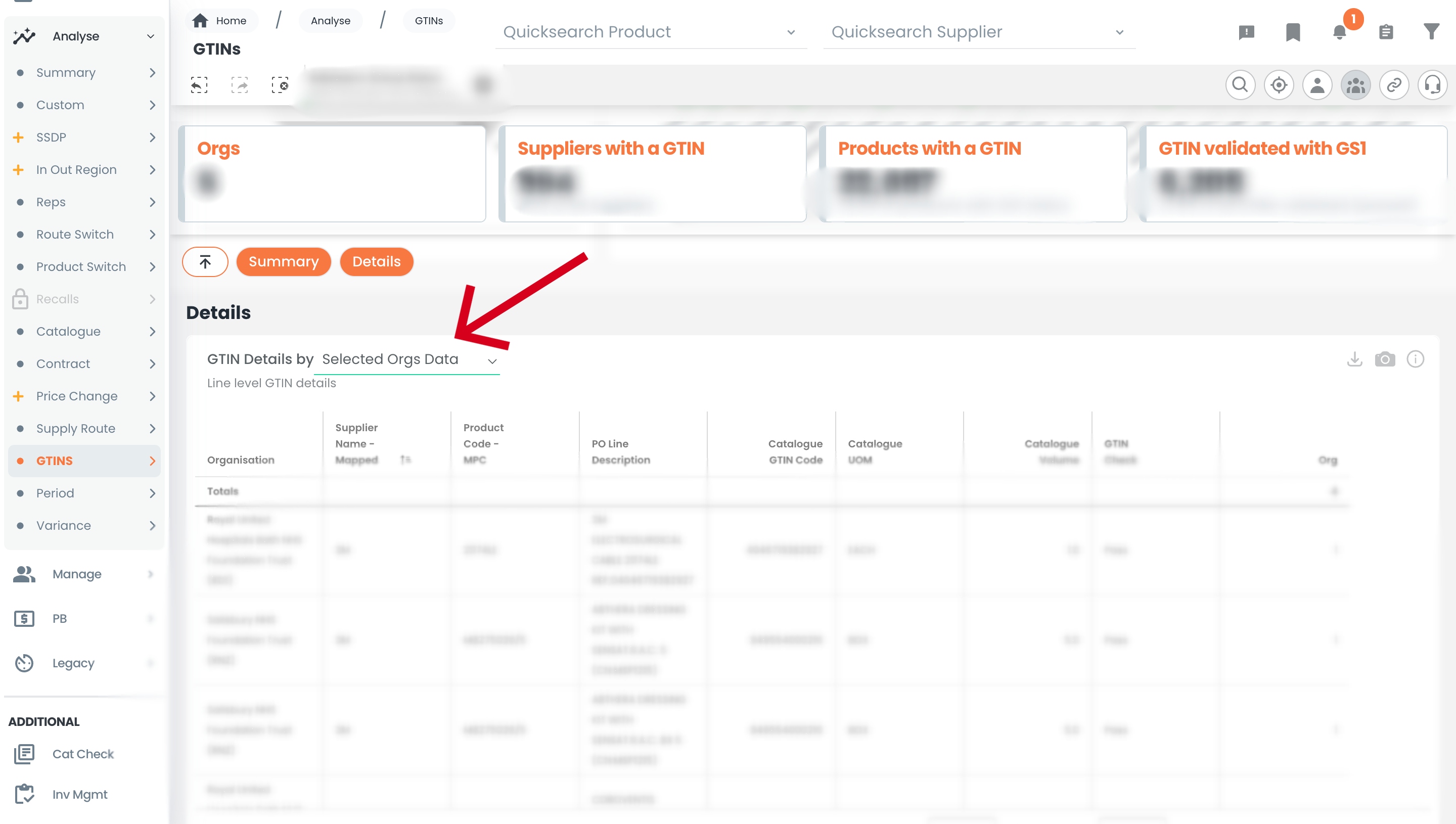
Note that you can switch between "View all organisations" and "View selected organisations".
Notes And Tips
- We extract your GTINs from your catalogue data.
- To find out more, please see the GS1 website here.
If you have any questions, please don’t hesitate to get in touch at support@adviseinc.co.uk or phone us on 0207 112 9222.
Was this article helpful?
That’s Great!
Thank you for your feedback
Sorry! We couldn't be helpful
Thank you for your feedback
Feedback sent
We appreciate your effort and will try to fix the article