Price Benchmarking a Single Product
Modified on Wed, 23 Oct, 2024 at 3:50 PM
TABLE OF CONTENTS
Introduction
This FAQ demonstrates how to Benchmark a single product using the PB>Price Check in Platform.
Step-by-Step Guide
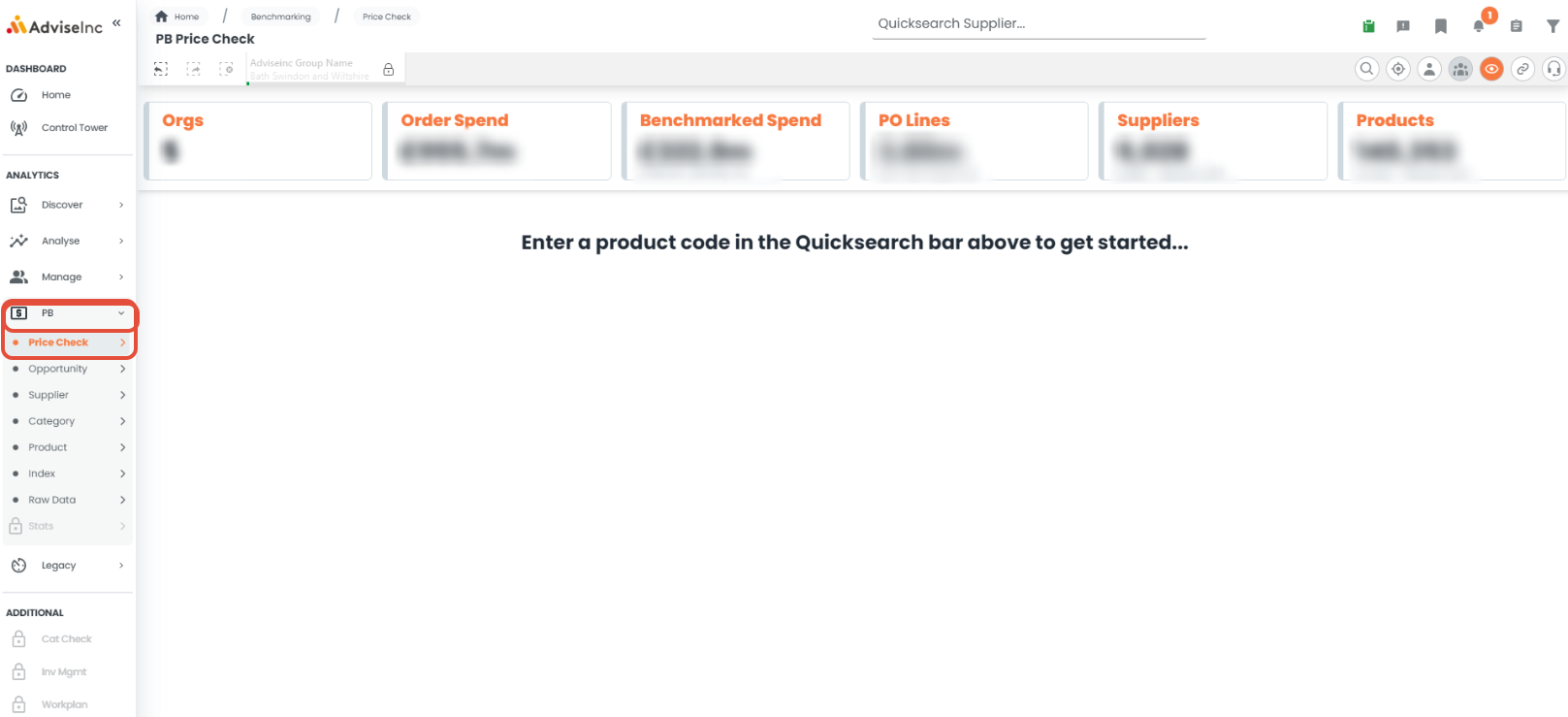
1. On the left-hand menu in Platform, go to the PB section and click Price Check page.
2. You will be prompted to enter a single Product. You can do this using the 'Quicksearch Product’ bar at the top of the page of the Product filters under the main filter panel.
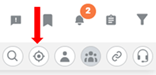
3. By default you will be looking at prices across all time. To focus on prices paid recently you will need to add a Purchase order date filter on. Choose the period you would like to cover using the ‘Open Filters’ icon. Please note all benchmarking uses PO data.
If the chosen products have not been purchased by your organisation then you can select all Organisations. This can be done by unlocking the padlock next to your organisation name, selecting the 3 dots, and choosing "Select all".
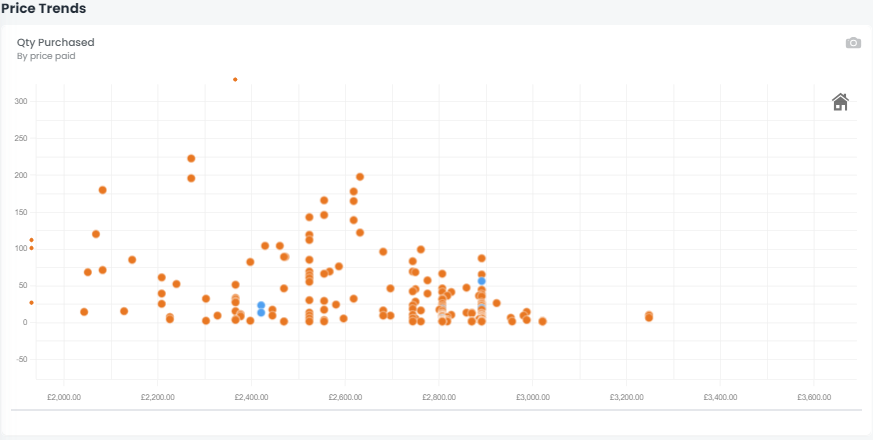
4. In the top section on the left, there is Quantity Purchased by price paid. Hover over the dots on the tables to see Trust, Price Paid and Quantity Purchased.
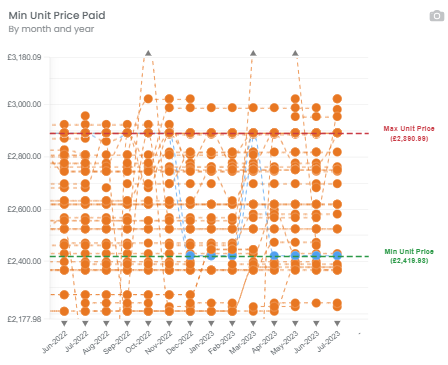
5. The table on the right presents Minimum Unit Price Paid by month and year. Hover over the dots on the tables to see Trust, Price Paid and Quantity Purchased. Here you will also be able to see minimum and maximum unit price paid, shown by the red and blue dotted lines.
6. The Pricing Table at the bottom of the page provides more information relating to product details and prices paid. This includes the min, median and max price paid.
Further Information
If you have any questions, please don’t hesitate to get in touch at support@adviseinc.co.uk or phone us on 0207 112 9222.
Was this article helpful?
That’s Great!
Thank you for your feedback
Sorry! We couldn't be helpful
Thank you for your feedback
Feedback sent
We appreciate your effort and will try to fix the article