Price Benchmarking Multiple Products
Modified on Fri, 6 Sep, 2024 at 12:04 PM
TABLE OF CONTENTS
Introduction
This FAQ will demonstrate how to use the PB > Product page to Benchmark multiple products.
Step-by-Step Guide
1. On the left-hand menu of Platform, find the PB section and click Product page.
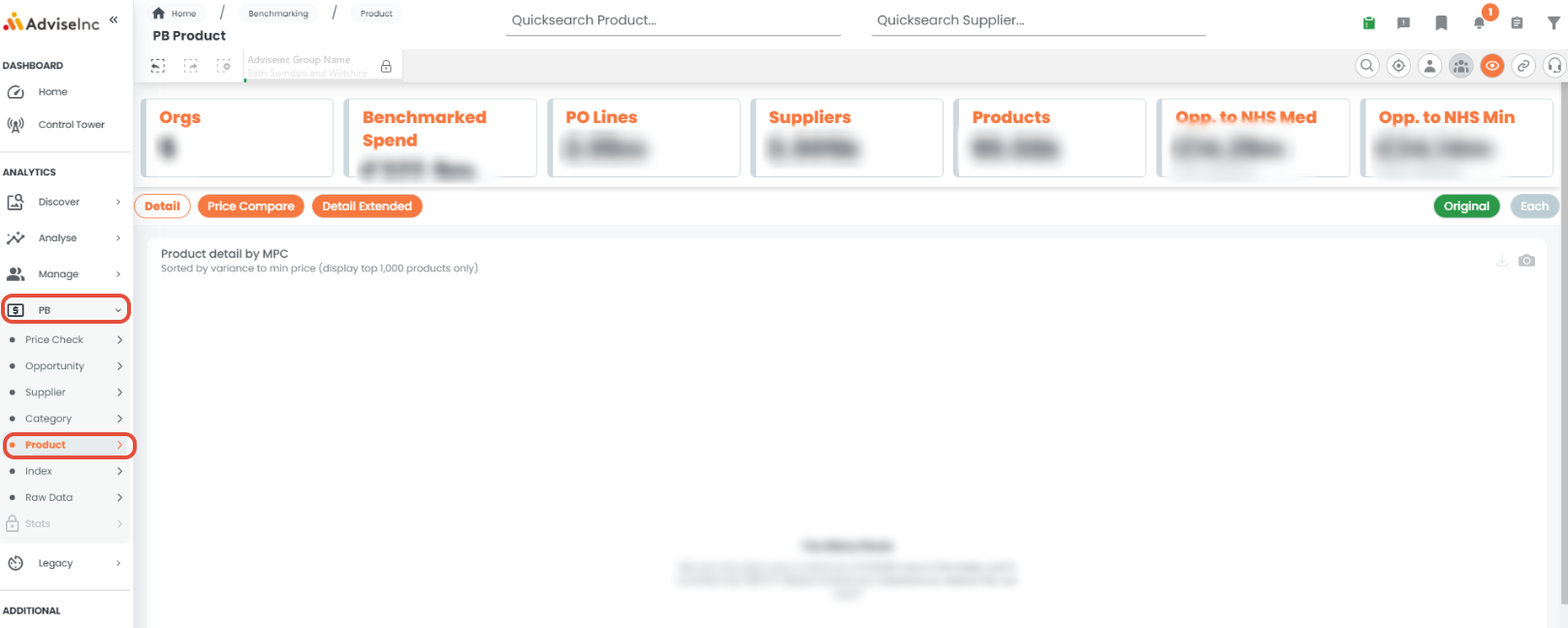
2. You will then need to enter the products you would like to benchmark . There are a number of ways to search for multiple products.
- String search - this works for large lists of products. The quickest way to search for multiple products is to use the Search String Generator attached below. This simple Excel tool converts large lists of data into the correct search string to use in the AdviseInc Platform. Simply copy and paste your product codes, and hit 'Generate', click here to read more.
- Filters - By selecting a particular supplier or any other filter it will select all the products that sit under it.
- Product search - Using filters and (|)* to find ones. or searching and hitting enter eg looking for all products that start Har you can type Har* and enter to select all.
3. Using the sub-pages you can view the tables comparing prices against your organisation or a select group.
- Price Compare- Price Comparison Detail either with or without quantity.
4. The Product report can be exported using the icons below. You can either export as an Excel Spreadsheet or as a picture.

Notes And Tips
- You can use our ‘Searching for Multiple Products’ FAQ to find guidance on searching for multiple products at once.
- Always ensure your search begins and ends with brackets.
If you have any questions, please don’t hesitate to get in touch at support@adviseinc.co.uk or phone us on 0207 112 9222.
Was this article helpful?
That’s Great!
Thank you for your feedback
Sorry! We couldn't be helpful
Thank you for your feedback
Feedback sent
We appreciate your effort and will try to fix the article