How can I apply a PO or AP date range?
Modified on Tue, 21 Jan, 2025 at 4:26 PM
TABLE OF CONTENTS
Introduction
You're able to view both data that is present on Purchase Orders as well as any Invoice data on the Platform tool by specific date ranges.
Step-By-Step Guide
How can I apply a date range on PO spend?
If you'd like to apply a date range on your purchase orders on Platform, you can easily apply a PO date filter. Here's how:
Click on the bullseye icon to access the Quick Filters.
From the Quick Filters menu, you'll be able to see the Dates section in the left hand side. Under here, you can select from different date ranges under "Orders" such as previous 1 month, 3 month, 6 months and 12 months.
If you're looking for a more specific time frame, you can use the date range selector to manually type in dates you'd like to your data by. Please ensure you're using dashes ( "-" ) to ensure this works, for instance "01-April-2024"
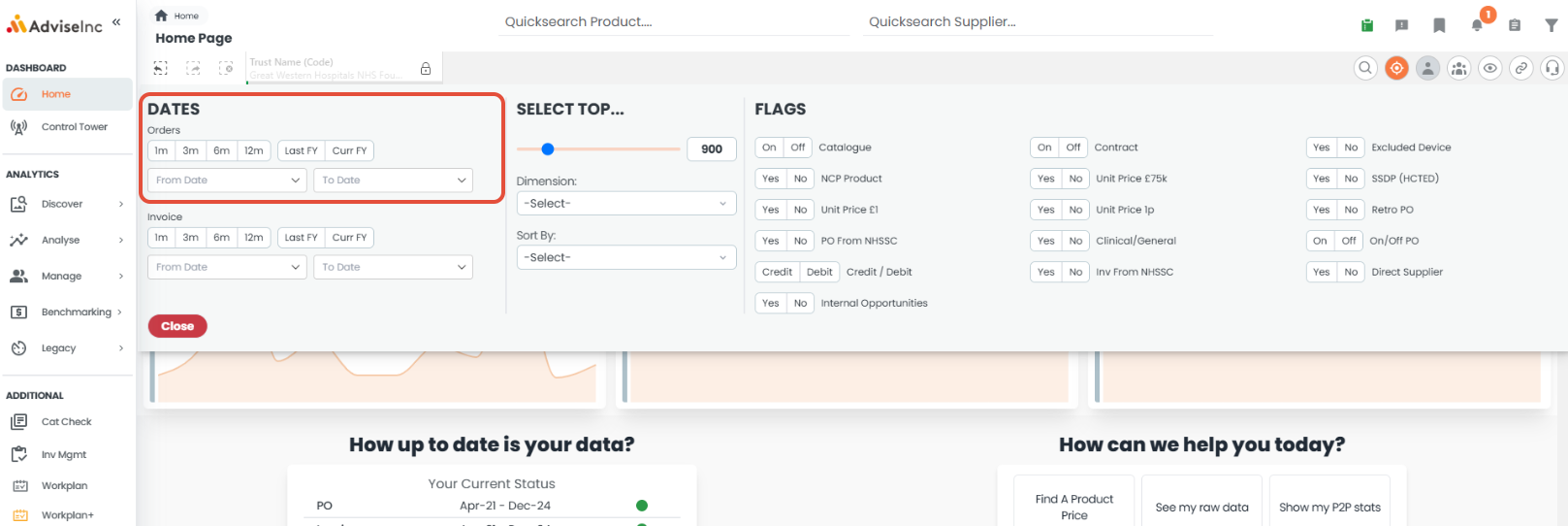
Once you’ve selected your date filter, your results will be filtered to ensure you're only looking at this time frame.
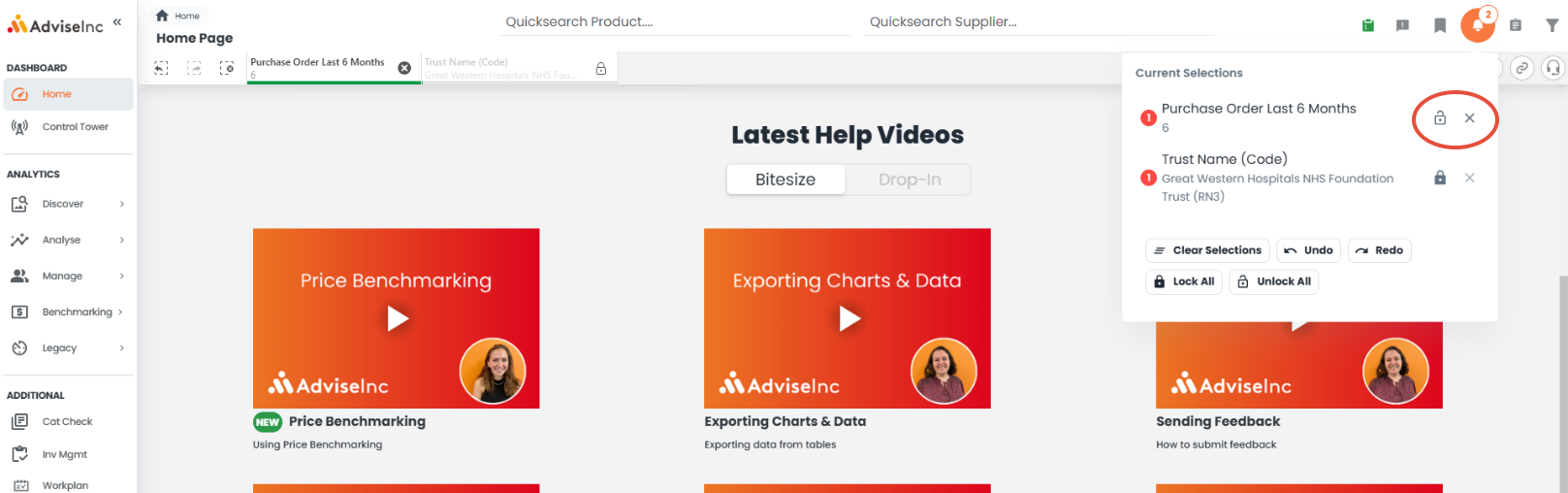
To remove any date filters, just go ahead into "Current Selections" (the bell icon in the top right) and ensure the time filter is set to unlocked. Then, you can click on the cross button to remove the filter.
How can I apply a date range on Invoice spend?
If you'd like to apply a date range on your Invoices on Platform, you can easily apply a Invoice date filter. Here's how:
Click on the bullseye icon to access the Quick Filters.
From the Quick Filters menu, you'll be able to see the Dates section in the left hand side. Under here, you can select from different date ranges under "Invoices" such as previous 1 month, 3 month, 6 months and 12 months.
If you're looking for a more specific time frame, you can use the date range selector to manually type in dates you'd like to your data by. Please ensure you're using dashes ( "-" ) to ensure this works, for instance "01-April-2024"
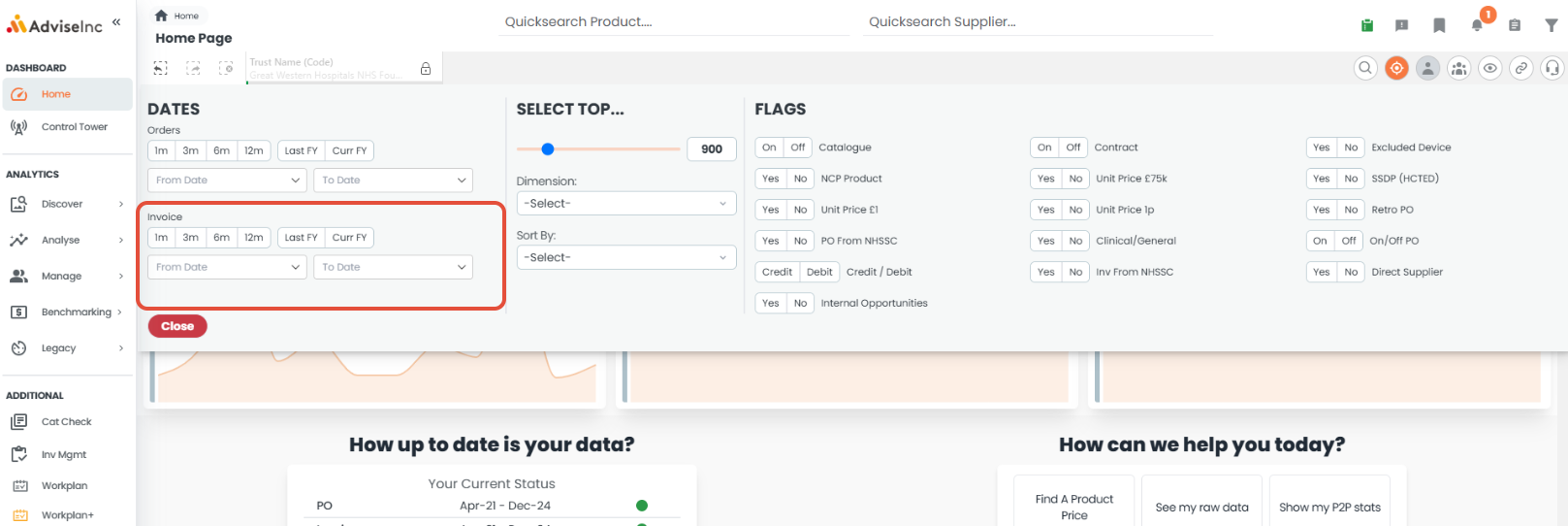
Once you’ve selected your date filter, your results will be filtered to ensure you're only looking at this time frame.
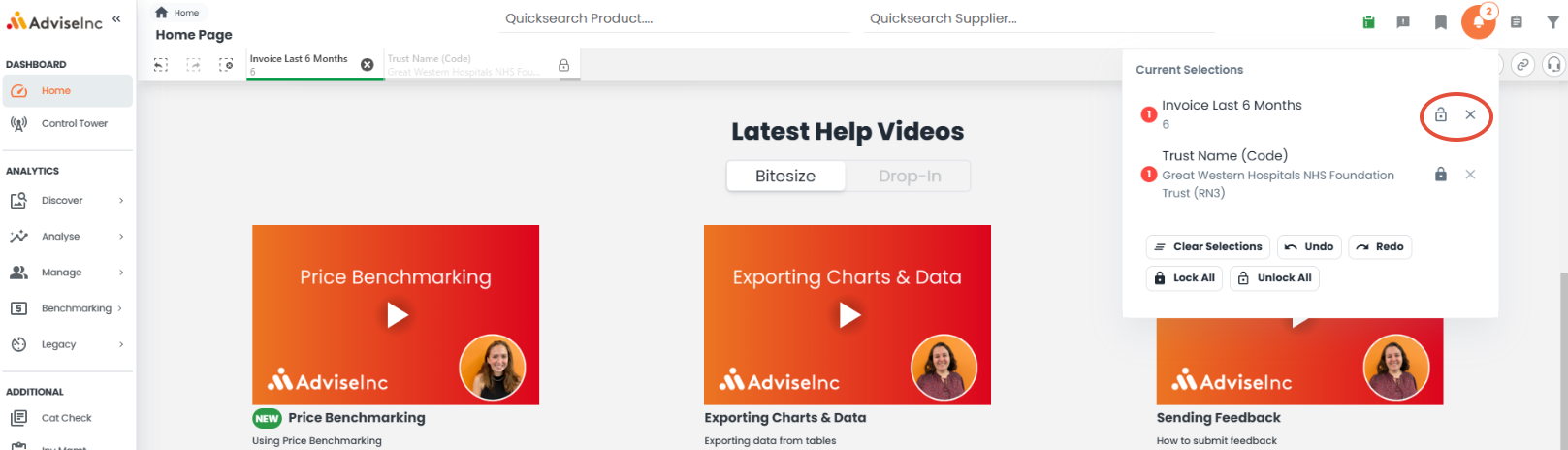
To remove any date filters, just go ahead into "Current Selections" (the bell icon in the top right) and ensure the time filter is set to unlocked. Then, you can click on the cross button to remove the filter.
How can I view my PO and Invoice spend on Analyse>Custom?
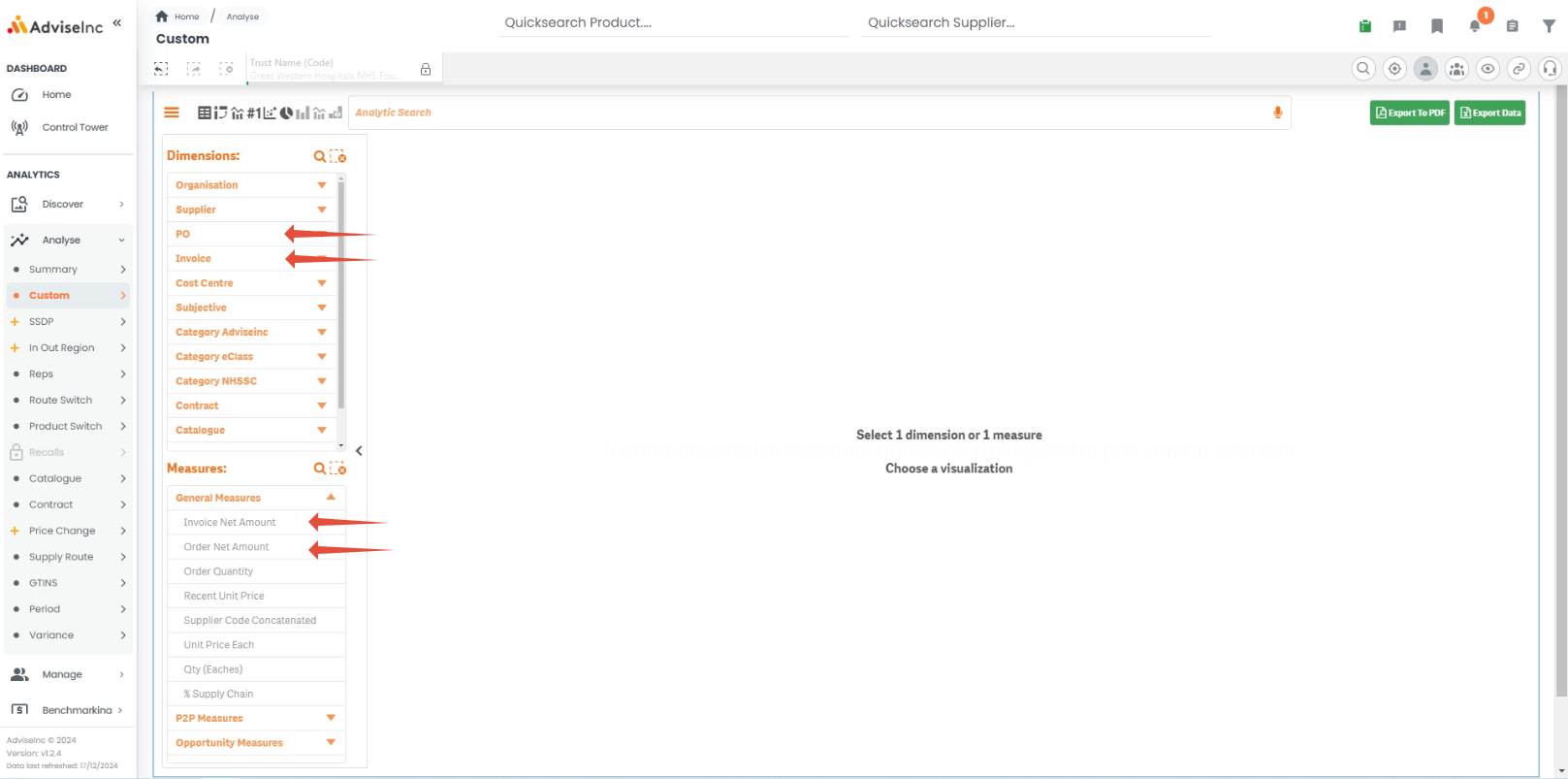
You can view a breakdown of your PO and Invoice spend when building out reports on Analyse>Custom.
Head over to Analyse>Custom with you filters applied, for instance an MPC or Supplier you'd like to see spend for.
Under Dimensions, you'll find the "PO" and "Invoice" subheadings. You can click into these subheadings to pull out dimensions related to PO and Invoice spend to see on your report.
Under Measures, you can also pull out "Order Net Amount" and "Invoice Net Amount" in the "General Measures" subheading to view pricing information related to any filters you have applied on Platform.
If you have any questions, please don’t hesitate to get in touch at support@adviseinc.co.uk or phone us on 0207 112 9222.
Was this article helpful?
That’s Great!
Thank you for your feedback
Sorry! We couldn't be helpful
Thank you for your feedback
Feedback sent
We appreciate your effort and will try to fix the article