Applying and Removing Filters
Modified on Wed, 14 Aug, 2024 at 2:39 PM
TABLE OF CONTENTS
Introduction
This article will explain how you can apply and remove filters using the AdviseInc Platform.
Step-by-Step Guide
1. Identify the filters you need in order to carry out your search.
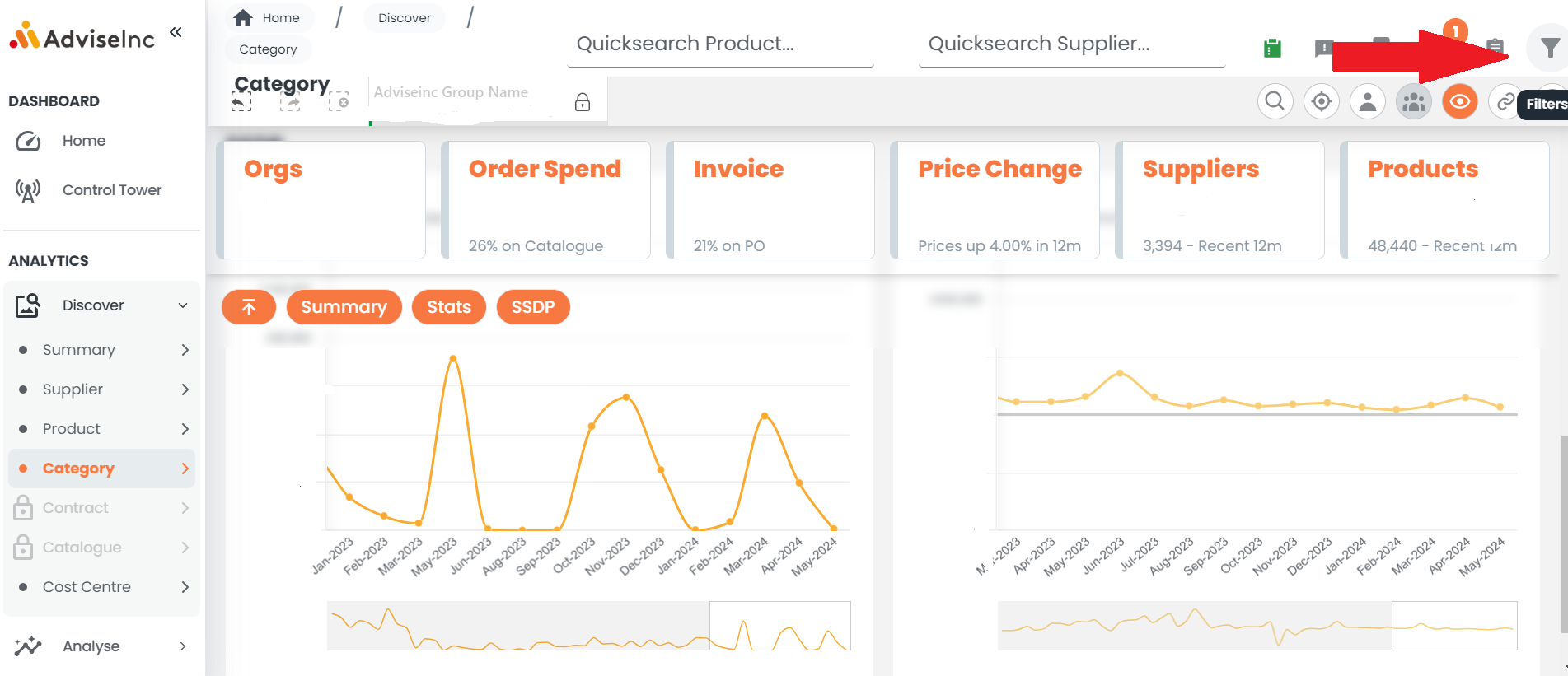
2. Next, use the filter icon on the right-hand side to bring up the list of filters.
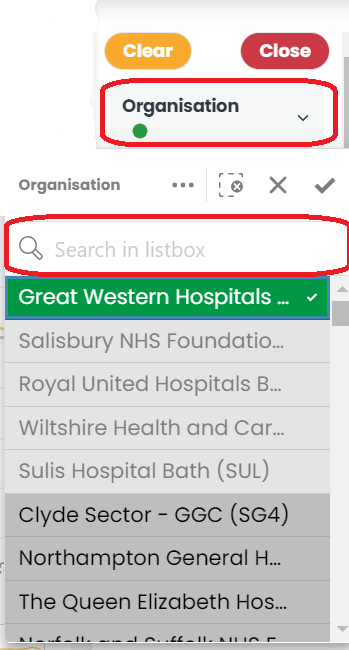
3. Make your selections by clicking in the search bars under your desired category and clicking in the 'search in listbox'. You can click and drag to select multiple items in the list or by clicking enter to select all selections under your search term.
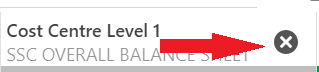
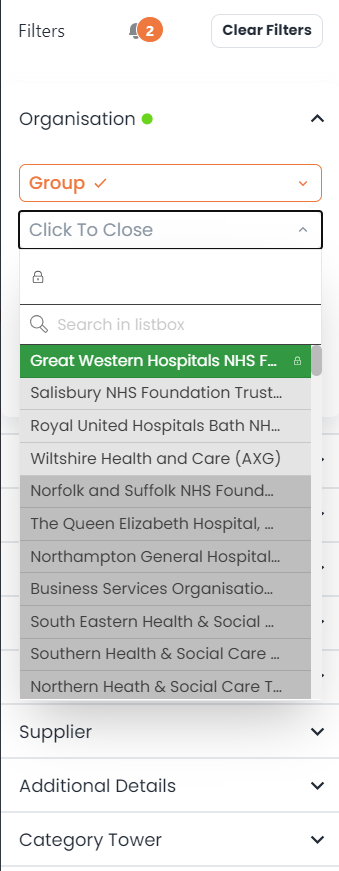
4. You can remove filters by selecting the cross next to your selected filter at the top or under the current selections bell. Alternatively, you can select the main filter panel on the right and remove your selections here by clicking the item to remove from the list.
Notes And Tips
- Make sure any filter you wish to remove is 'unlocked'. Learn more about locking and unlocking filters here.
- To search for multiple items including products, suppliers etc click here.
If you have any questions, please don’t hesitate to get in touch at support@adviseinc.co.uk or phone us on 0207 112 9222.
Was this article helpful?
That’s Great!
Thank you for your feedback
Sorry! We couldn't be helpful
Thank you for your feedback
Feedback sent
We appreciate your effort and will try to fix the article